Steps to see the Wi-Fi key in Windows 11
We will have different options for view Wi-Fi password in Windows. We can access it simply from the system configuration, through the Terminal and also use some third-party applications that we will have to install on our computer to show us the stored passwords.
windows settings
The first option we have is to see the password of the Wi-Fi network to which we are connected through the Windows 11 configuration. It is a simple process. We have to go to Start, enter Settings, click on Network and Internet, Advanced network settings and More network adapter options.
Once here a new window will open. There we will see the different network adapters that we have available on the computer. One of them will be the Wi-Fi we are using. Right-click on it and click on Condition.
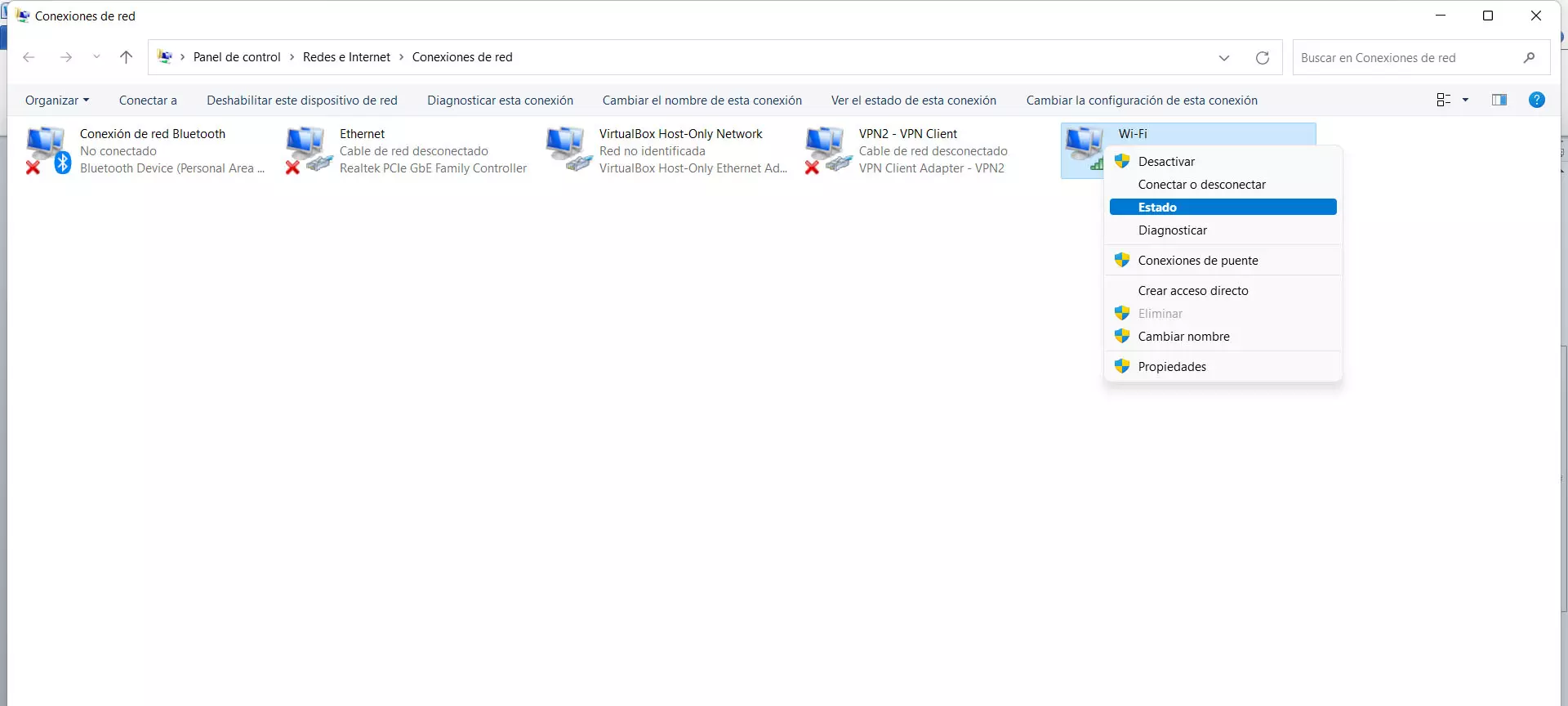
Later, in the new window that will open, we click on Wireless Properties and then click on the Security tab. There the type of security and encryption will appear, as well as the network security key. Simply check the box show characters and ready.
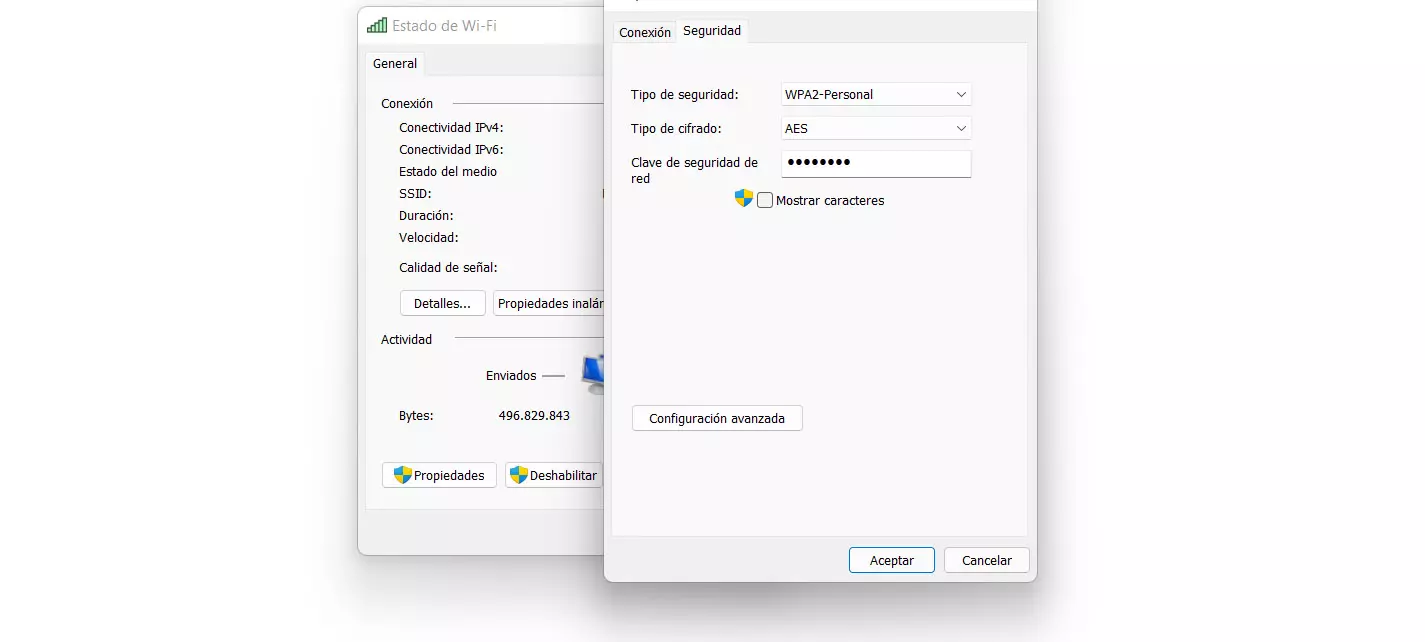
In this way, we can copy the password of the Wi-Fi network to which we are connected, show it to another person or simply use it to connect any other device. It is a quick and easy method, without the need to install anything additional on the system. The type of encryption that this particular network has will also appear.
Terminal
But in the previous case we will only be able to see the password of the Wi-Fi network to which we are connected at that moment. That is, we cannot see any other keys if we are not currently connected. There is an alternative where we will be able to see the password of any network to which we have connected and it has been saved.
In this case we are going to go to Start and open the Windows Terminal (PowerShell) or the Command Prompt. We are going to write a couple of commands and it will give us the stored networks and their corresponding key as a result.
The first command we are going to run is netsh wlan show profile. This will launch us a list of all the networks to which we have connected at some point. Keep in mind that the networks will not appear if at some point we have decided to delete the record.
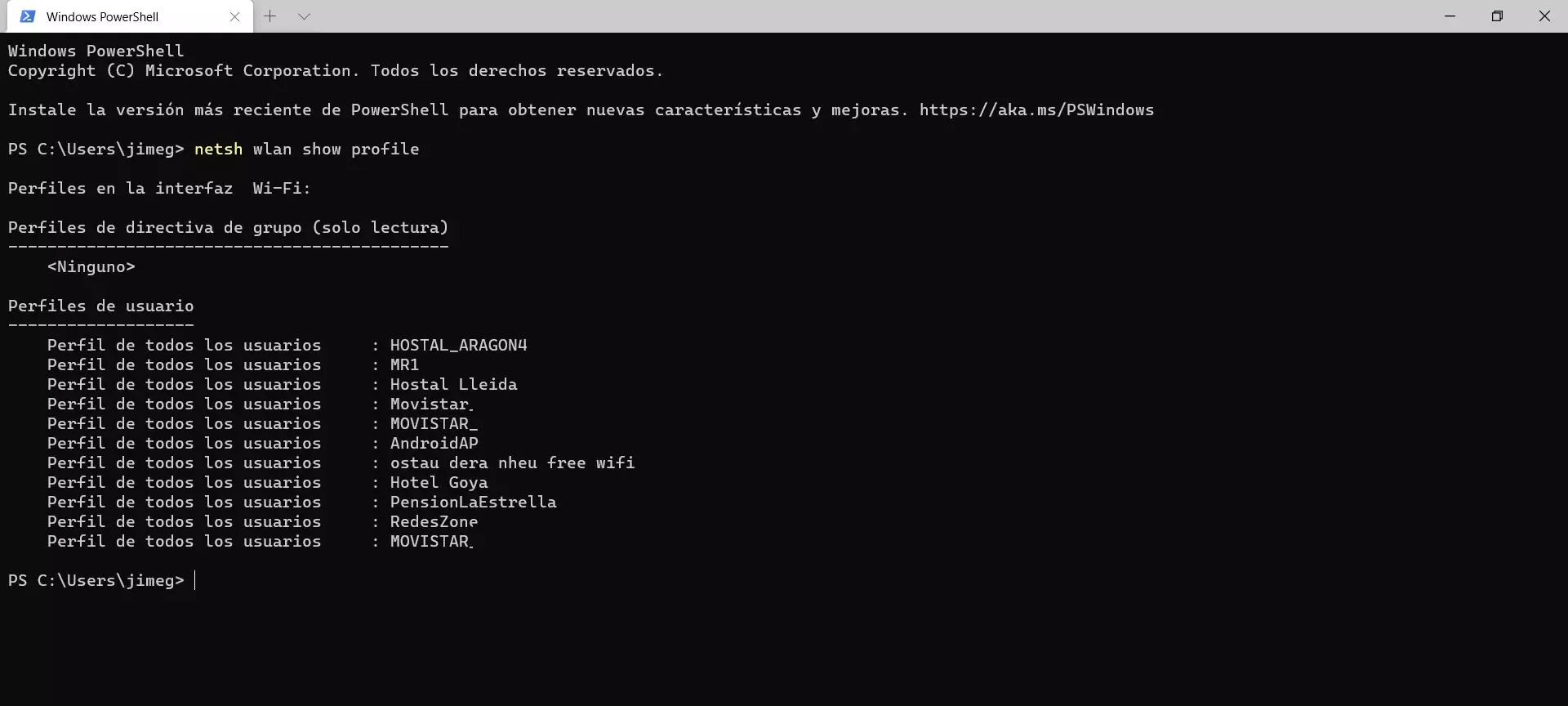
Once this is done, the next thing will be to execute the command netsh wlan show profile name=networkname key=clear. We have to change “network name” to the name of that Wi-Fi from which we want to obtain the password. It can be anyone, whether or not we are connected at the time. It is important to put the exact name.

With this you will see that it shows you the password information just below. Of course, you have to keep in mind that this is the key that Windows has stored. What does this mean? If, for example, you have connected to a network months ago, that Wi-Fi may no longer have the same password.
external programs
We have seen some options available in Windows 11 without having to use any external application, but we can also install programs for it. The objective is the same: to know the Wi-Fi passwords that the system has saved and to be able to use them on other devices. Let’s see a couple of programs for it.
Wi-Fi Profile Manager
One option we have is WiFi Profile Manager. it totally free for windows 11. We can download and run it directly, without having to install it on the system.
When we have installed it we can see a number next to the icon on the taskbar. That number corresponds to the number of networks to which we have connected and the system has saved. In addition, when opening it we will see the name of all the networks, the type of connection and the security.
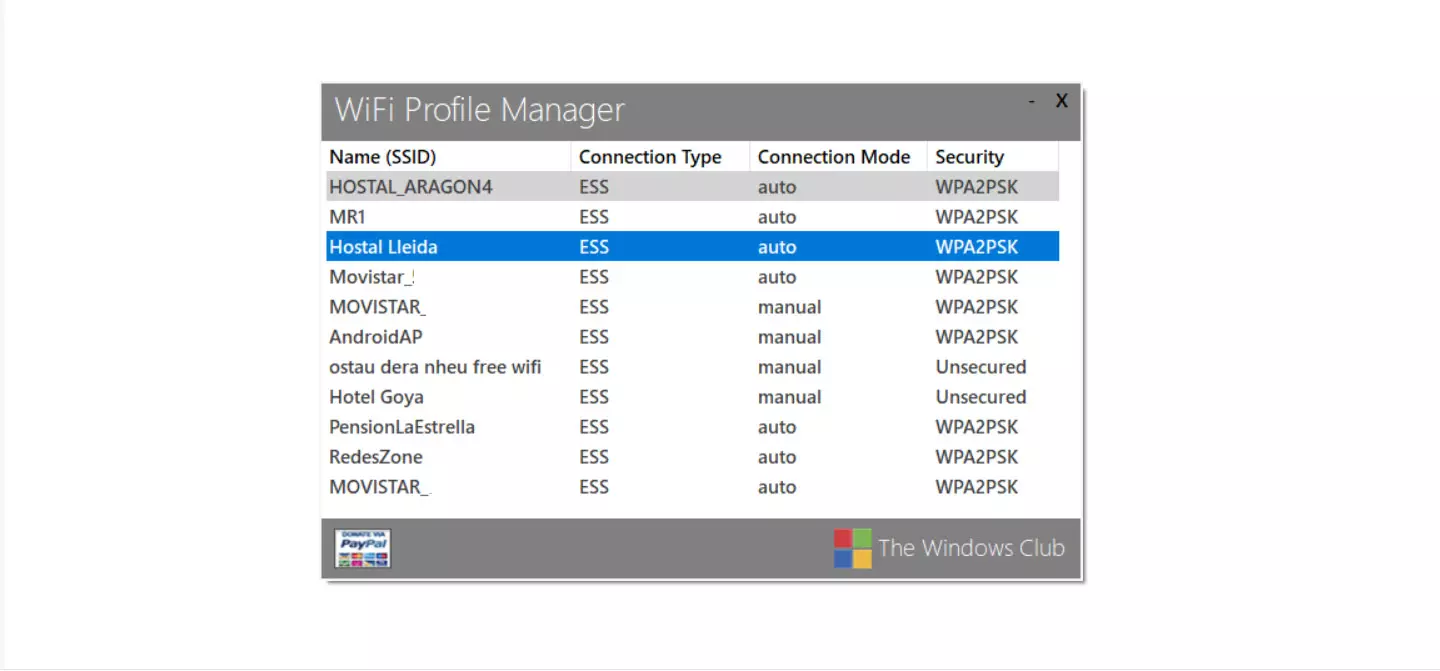
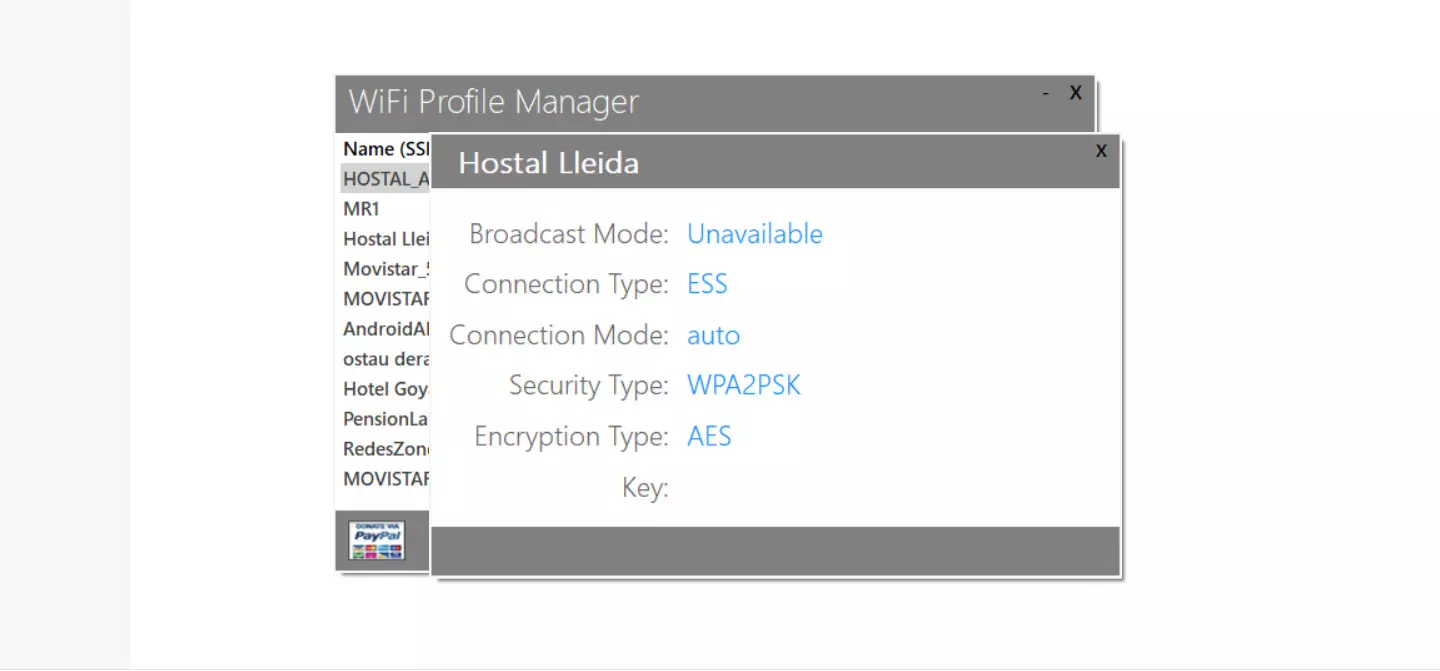
To see the password you simply have to click with the second mouse button on the network that interests us and click on Properties. We will see the password quickly, as well as the encryption type. As you can see in the image, open networks that do not have any type of password to access also appear.
Wi-Fi Password Revealer
In this case, we are going to have to install the application in Windows once we have downloaded it. It is really simple to use and we will be able to see the password of any Wi-Fi network that the system has registered at some point, as well as information about the type of encryption.
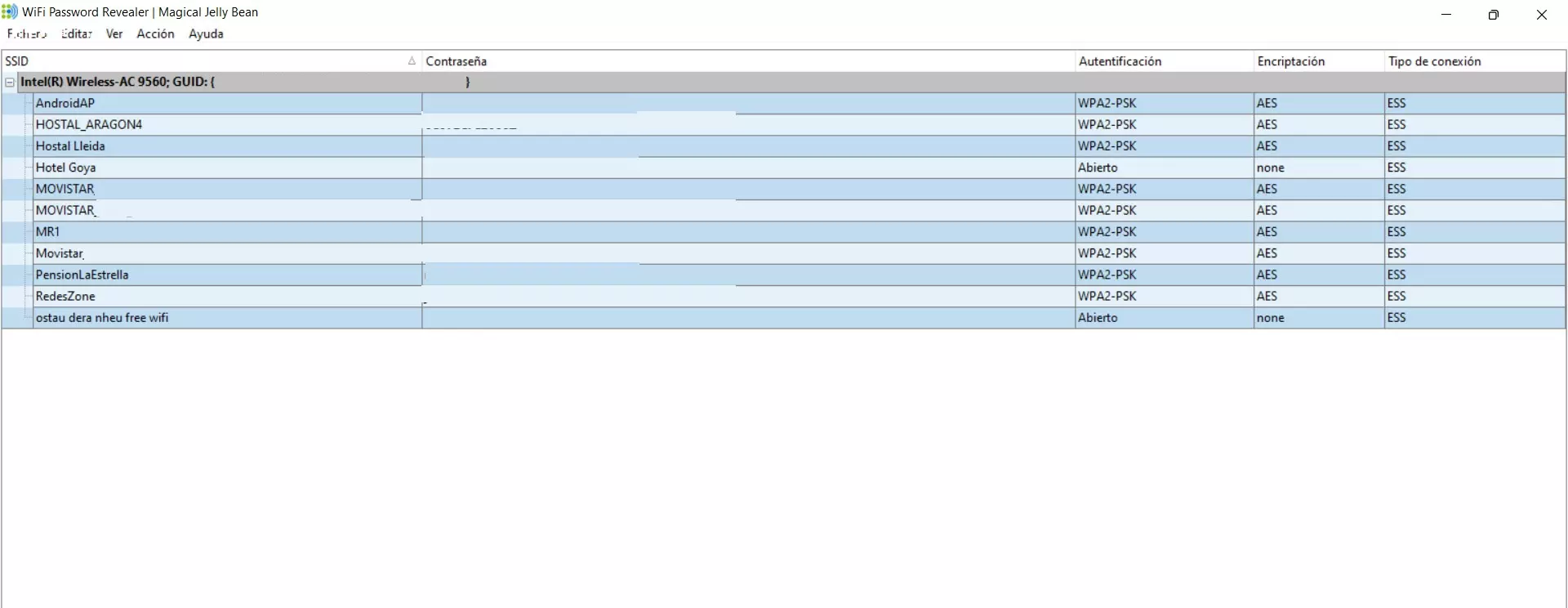
As soon as we run the program we will see a first window with all the networks and password beside. Simply by opening it we will have that information available. We can connect any other device to that network without having to go to the router configuration or look for it elsewhere.
In short, these are the options you have to be able to see the saved Wi-Fi passwords in Windows 11. You can see it simply with the system terminal or through the configuration, but also through some free external program that provides this type of data. However, you will only be able to see those that you have previously saved and as long as you have not deleted that information.