In case we run into this problem, we will have some options to download the files. Now, we must be aware that this download could have been blocked because it really is a dangerous file. We should only proceed if we are 100% sure that there is no risk. For example, if we know who sent that attachment and we know that it is safe.
How to download locked files in Gmail
If we find ourselves with this problem, all is not lost, far from it. We have options to download a file that has been blocked by Gmail for security reasons or for whatever reason. We simply have to be sure that it really is legit and we are not going to have problems.
Use an email client
We usually use Gmail from the browser itself. It is enough to access the web page in Google Chrome, Mozilla Firefox or the program that we use, we put our data and we can see the inbox or send any e-mail to another user. However, we will also be able to use an email client.
We can name as examples Thunderbird, Mailbird, Spark or the client that comes with Windows. This type of service will allow us to log into the email account and be able to download the attachments, avoiding the problems that we have discussed.
For this we have to install the one that interests us and later log in with our data. From that moment on, we can transfer the corresponding file to our computer and we can open it normally.
Of course, our advice is to have a good antivirus that can analyze that file or files that we download. This will allow us to avoid security risks and the appearance of problems that endanger the operation of the system. For example we can use Windows Defender, Bitdefender, Avast or any other that is reliable.
Show original email
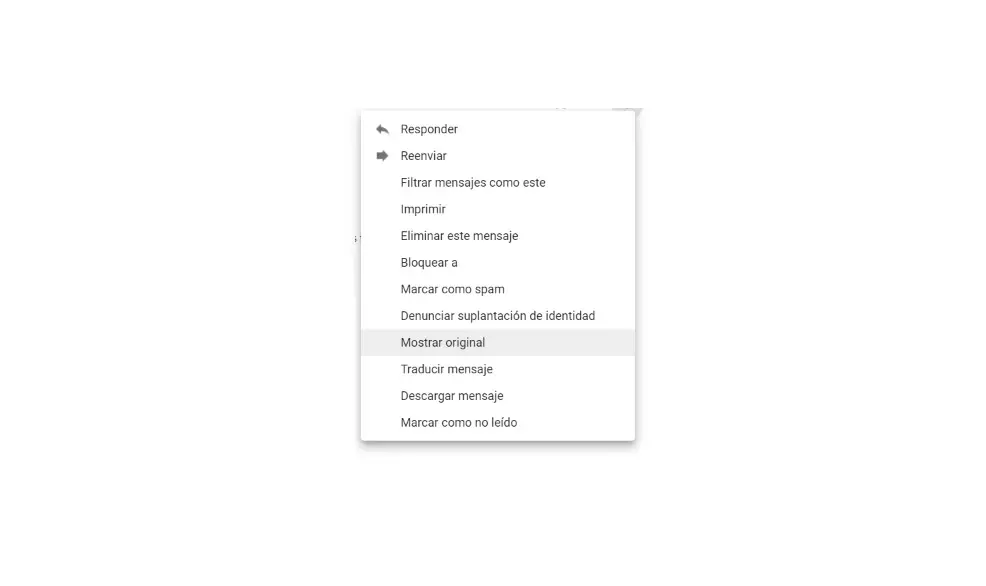
We also have the option to download files through the original email download. What we do is download the original content directly to the team. For this we have to go to Gmail, we open the corresponding email and above, in the three-point menu, we have to click on Show original.
Once we have done this, a new window will automatically open. The original email will appear there, with all the text and attached files. What we have to do is click on Download original, which is the option that appears on the left. A file will be downloaded in .EML format.

If it were downloaded in .TXT format, we would simply have to change it to .EML and in this way we could open it with the email client that we have installed, which can be the same one that Windows brings by default or any other option.
Check that the antivirus works well
But we have indicated that the main reason may be that it detects that this file is dangerous. In this sense, the antivirus it can play an important role as well. Beyond the fact that Gmail itself can block a download, the security program that we have installed can also do it.
Therefore, what we are going to do in this case is check that it is properly configured and that we are also using an application that works correctly. We must always choose a guarantee program, which we know will perform well and which of course is up to date.
In an extreme case, if we see that it does not allow us to download a file and we know 100% that it is safe, we can always momentarily pause the antivirus. It is not the most advisable, but it is one more option.
Use other methods to prevent Gmail from locking files
Can we use other methods to share files and prevent Gmail from blocking them when downloading? The truth is that we have many options for this and they can also work much better than email. Beyond solving errors when downloading a document or file, we will be able to increase the maximum size and not exhaust the storage capacity.
An example is using the cloud. We can use services like Google Drive and host folders there and later share them with others. They will be able to download the content easily from any other device and thus avoid problems that may arise with Gmail.
We can also use a NAS server Where we can also host content and share it with third parties as long as they have access to an Internet connection and can download those files.
Keep in mind that we will not be able to configure Gmail so that it does not block the download of files. At the end of the day, it is a security measure that has been implemented to avoid problems. We can only follow one of the methods that we have seen or use another independent service.
In short, if you have problems downloading an attachment in Gmail, you can consider the possibility of using a separate email client or downloading the original file to later open it with Thunderbird, Spark or any other client.