Have you ever wondered how you can quickly create engaging video content from long videos? Vizard AI might be the perfect tool for you. Vizard AI is an AI-powered video editing tool that helps you transform long videos into multiple short, social media-ready clips.
But what exactly is Vizard AI? How can you use it effectively? In this article, we get into these questions, exploring Vizard AI’s features, benefits, and step-by-step instructions on how to use it. This article will guide you through the entire process in simple terms, making it easy for anyone to understand and get started.
Table of Contents:
What is Vizard AI?
Vizard AI is an advanced video editing and generation tool that leverages artificial intelligence to simplify and accelerate the video creation process.
Its primary function is to help users create short, impactful video clips from longer videos, making it ideal for social media marketing, content creation, and more. Vizard AI is designed to be user-friendly, ensuring that even those with no prior video editing experience can use it with ease.
Features of Vizard AI
Vizard AI offers a robust set of features that make it an excellent choice for video content creators:
- AI Clipping: Vizard AI can automatically identify the most engaging parts of your video and create short clips with a single click. This saves you the time and effort of manually reviewing and cutting your footage.
- Speaker AI Smart Cut: The tool detects and segments different speakers in your video, allowing you to create focused clips for each speaker. This feature is particularly useful for interviews and webinars.
- Auto-Focus on Speakers: Vizard AI ensures that the speakers’ faces remain the focal point of the clips by automatically adjusting the frame.
- AI Captioning and Translation: Add accurate subtitles to your videos in over 30 languages and translate them into more than 100 languages. This expands your reach and makes your content accessible to a global audience.
- Customization Options: You can customize your video clips by changing the aspect ratio, adding captions, adjusting the layout, and more. This helps ensure your videos are tailored for different social media platforms.
- Integration with YouTube and Zoom: Easily import videos from YouTube and Zoom, making the editing process seamless and efficient.
Benefits of Using Vizard AI
Using Vizard AI provides numerous benefits, especially for those looking to enhance their video content creation process:
- Time-Saving: Vizard AI automates many of the tedious aspects of video editing, allowing you to produce high-quality clips quickly.
- Improved Engagement: Short, engaging video clips are more likely to capture viewers’ attention on social media platforms, leading to higher engagement rates.
- Broader Reach: By adding subtitles and translating your content, you can reach a wider audience and make your videos accessible to non-native speakers.
- Cost-Effective: Vizard AI reduces the need for expensive video editing software and professional editors, making video production more affordable.
- User-Friendly Interface: Designed with ease of use in mind, Vizard AI is accessible to beginners and experts alike.
How to Get Started with Vizard AI
Getting started with Vizard AI is straightforward. Follow these simple steps to create your first video clips:
- Sign Up and Log In: Visit the Vizard AI website and sign up for an account. Once registered, log in to access the platform.
- Upload Your Video: You can upload your video directly from your computer or import it from YouTube or Zoom. Vizard supports various video formats, making the upload process hassle-free.
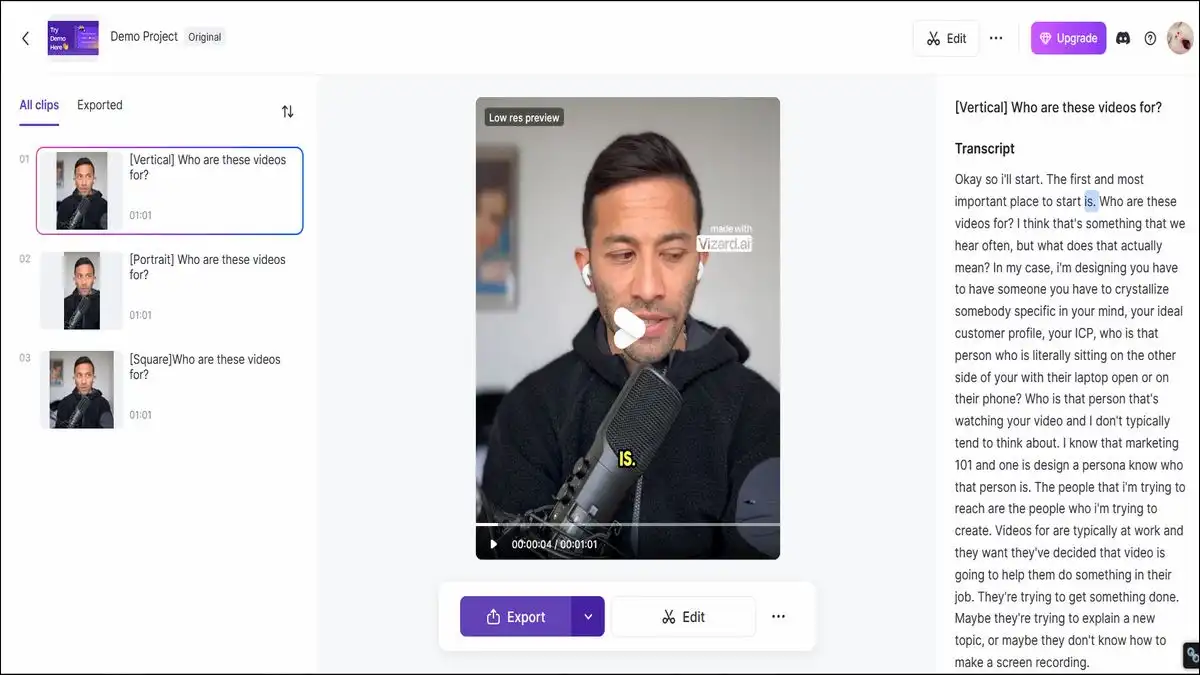
- Generate AI Clips: After uploading your video, click on “Get AI Clips.” Vizard AI will analyze your video, transcribe it, and generate short clips based on the most engaging parts.
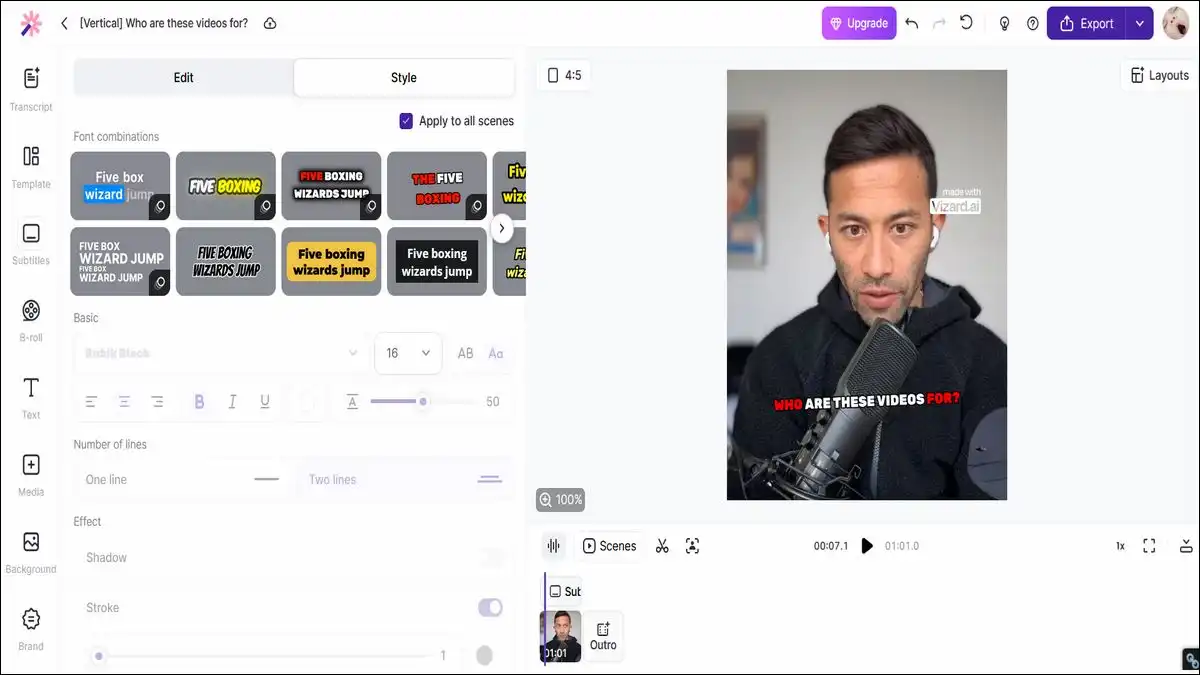
- Edit and Customize: Use the customization options to adjust your clips. You can add subtitles, change the aspect ratio, and make other modifications to ensure your clips are perfect for your chosen platform.
- Export and Share: Once you are satisfied with your clips, export them in your preferred format. You can download the clips or publish them directly to social media platforms from Vizard AI.
How to Auto Generate Video Clips with Vizard
Auto-generating video clips with Vizard AI is a simple process that uses artificial intelligence to make video editing quick and efficient.
Whether you’re looking to create social media-ready clips from long webinars, interviews, or any other form of lengthy video content, Vizard AI can help you do it in just a few simple steps.
Here’s a detailed guide on how to use Vizard AI to auto-generate video clips:
Step-by-Step Guide:
1. Sign Up and Log In
First, you need to sign up for an account on Vizard AI’s official website. Visit Vizard AI and click on the “Sign Up” button. Fill in the required details to create your account. If you already have an account, simply log in using your credentials.
2. Upload Your Video
After logging in, you will be directed to the dashboard. Here, you can upload your video. Vizard AI supports various formats and sources, including direct uploads from your computer, YouTube links, and Zoom recordings. To upload a video, click on the “Upload Video” button and select the video file from your computer, or paste the YouTube link if you are importing from YouTube.
3. Transcribe Your Video
Once your video is uploaded, Vizard AI will automatically transcribe it. This involves converting the audio from your video into text, which makes it easier for the AI to identify key moments and generate clips. This step is automatic, and you just need to wait for the transcription to complete.
4. Generate AI Clips
After the transcription is complete, you can now generate clips. Click on the “Get AI Clips” button. Vizard AI will analyze the transcription and the video to identify the most engaging parts. It uses advanced algorithms to pick out highlights and create short clips from the longer video.
5. Review and Customize Clips
Vizard AI will present you with several auto-generated clips. Review these clips to ensure they meet your requirements. You can further customize these clips by trimming them, adding captions, adjusting the layout, and more. Vizard AI offers intuitive editing tools that make customization easy even for beginners.
6. Export and Share
Once you are satisfied with the clips, you can export them. Click on the “Export” button and choose your preferred format. You can download the clips to your computer or publish them directly to social media platforms such as YouTube, Instagram, TikTok, and Facebook. Vizard AI allows seamless sharing, making it easy to distribute your content across multiple platforms.
Detailed Features
- AI Clipping: This feature automatically identifies the most engaging parts of your video, saving you time and effort. Vizard AI uses machine learning to understand the context and importance of different segments in your video.
- Speaker AI Smart Cut: If your video features multiple speakers, this feature can detect and segment each speaker, allowing you to create focused clips for each person.
- Auto-Focus on Speakers: Vizard AI automatically adjusts the frame to keep the speaker’s face in focus, ensuring a professional look for your clips.
- AI Captioning and Translation: You can add subtitles to your clips in over 30 languages and translate them into more than 100 languages. This feature is particularly useful for reaching a global audience.
- Customization Options: Change the aspect ratio, add text overlays, and adjust the layout to fit different social media platforms. This ensures your clips are optimized for various formats.
Tips for Best Results
- Clean Your Video: Ensure your video has good audio and visual quality. Clear audio helps the transcription process, and good visual quality ensures better clip generation.
- Use Shorter Segments: While Vizard AI can handle long videos, uploading shorter segments can sometimes yield better, more precise clips.
- Customize Thoughtfully: While auto-generated clips are a great starting point, take the time to customize them to match your brand and message.
- Consistent Branding: Use the customization tools to add your logo, brand colors, and other elements to maintain consistency across all your video content.
Conclusion
Vizard AI is a versatile and powerful tool for video editing and data visualization. Its user-friendly interface and advanced AI capabilities make it an excellent choice for anyone looking to create high-quality video content quickly and efficiently.
By using Vizard AI, you can save time, improve engagement, and reach a broader audience. Whether you’re a marketer, educator, or content creator, Vizard AI has the tools you need to succeed. Start using Vizard AI today and see how it can transform your video editing and content creation process.
FAQs About Vizard AI
-
What is Vizard AI?
Vizard AI is an AI-powered video editing tool that helps users create short, engaging clips from long videos. It uses advanced algorithms to identify key moments in the video and generate social media-ready clips automatically.
-
How do I get started with Vizard AI?
To get started, visit the Vizard AI website and sign up for an account. After logging in, you can upload your videos, use the AI tools to generate clips, and customize them as needed before exporting and sharing.
-
What video formats does Vizard AI support?
Vizard AI supports a variety of video formats including MP4, MOV, and AVI. It also allows for direct imports from YouTube and Zoom recordings.
-
Can Vizard AI add subtitles to my videos?
-
Is Vizard AI suitable for beginners?
Absolutely. Vizard AI is designed to be user-friendly and intuitive, making it suitable for both beginners and experienced video editors. The AI handles complex tasks, allowing users to focus on creativity without needing technical expertise.
-
How does Vizard AI’s AI clipping feature work?
-
Can I customize the clips generated by Vizard AI?
-
What are the benefits of using Vizard AI?
Vizard AI offers several benefits, including time savings, improved engagement, broader audience reach, and cost-effectiveness. It simplifies the video editing process and allows you to create high-quality content quickly and efficiently.
-
Can I use Vizard AI to create clips from webinars and interviews?
Yes, Vizard AI is perfect for creating clips from long-form content such as webinars and interviews. It can segment different speakers and focus on key moments, making it easy to repurpose your content for social media.
-
How can I share the clips created with Vizard AI?
After generating and customizing your clips, you can export them in various formats. Vizard AI also allows for direct publishing to social media platforms like YouTube, Instagram, TikTok, and Facebook, making it easy to share your content.