Whenever we have a computer problem or to connect to the network, whatever it may be, something that can solve it is to return to the default values. It basically consists of resetting the configuration, going back to the starting point. And we can do that, for example, with the DNS stored in cache, we can restart TCP/IP, Winsock…
Can create a file in windows to bring together all this that we mentioned. In this way, simply by executing that file, we can clear the DNS cache, reset the IP, Winsock, etc. Basically what we are going to do is create a batch file to execute the following commands:
- ipconfig /release
- ipconfig /renew
- arp -d *
- nbstat -R
- nbstat -RR
- ipconfig /flushdns
- ipconfig /registerdns
In the first case, with the first two commands what we do is restart the IP and request a new one. The second one is used to remove the current hostname and get a new one. The nbstat -R command reloads the table of cache names and the last two commands are used to clear the DNS. They could help us solve certain problems that may appear and that would prevent Windows from connecting to the network normally.
We can execute all these commands one by one through the Windows command line. Basically what we have to do is go to Start, open the Command Prompt with administrator permissions and run them. However, what we are going to do is create a batch file with all of them. The result would be the same, but we would have everything in one place, as well as being easier on many occasions.
Open the text editor
The first thing we have to do is open a Text file. We can go to the Windows Desktop or any folder, click with the right mouse button, click on New and click on Text Document. We can also go to Start and type Notepad and open it.
Within the file that we have created, in the body of the text, we must paste the commands that we have described. It should look something like we see in the image below. With this we would have ready what interests us and we would only have to go to the next point, which would be save that file and give it the proper format.
Save in bat format
Note that the file name does not matter. We can put whatever we want, such as Reset network or anything that helps us easily identify it. The name we choose will not influence.
The format that we give to that file is important. We must give File, Save As and select All files. We will have to save it with the .bat format. For example, Reset Red.bat.
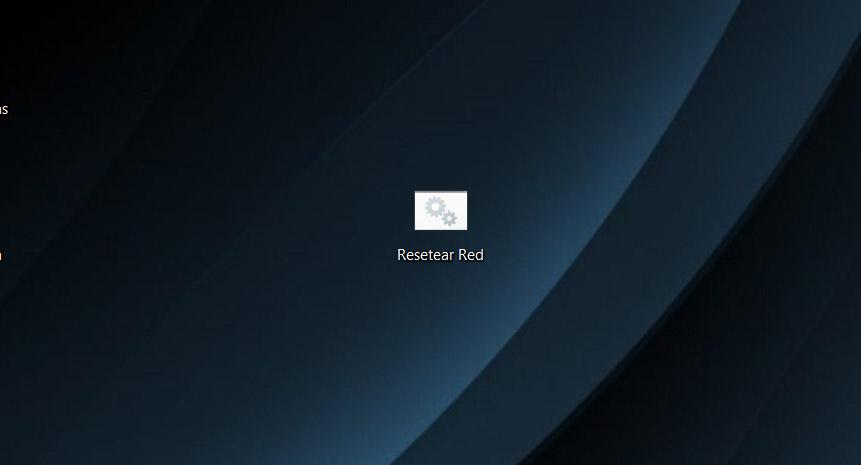
With this we will have our file ready to solve network problems in Windows. we will have a batch file created with the main commands that can be very useful to renew IP, clear DNS cache, Winsock, etc.
From now on, whenever we have any network problem and it is not solved simply by restarting the computer, we may have to carry out some other action and something very interesting is simply executing this file. We will only have to run it with administrator permissions and that’s it.
In short, by following these steps that we have described we will be able to create a batch file to quickly execute the main commands with which troubleshoot network. This is something that will save us time and can also be used to pass on to friends or family who are less experienced. We can create this file for them and just tell them to run it with administrator permissions.
Keep in mind that it is very important to know how to identify possible network problems that may appear. Not all of them will be solved in this way. As advice that we can give, it is convenient to have the equipment updated (this also applies to the firmware of the router), keep it safe without any type of malware, as well as avoid installing programs that are not official and that could be a problem.
Reset all network settings through the menu
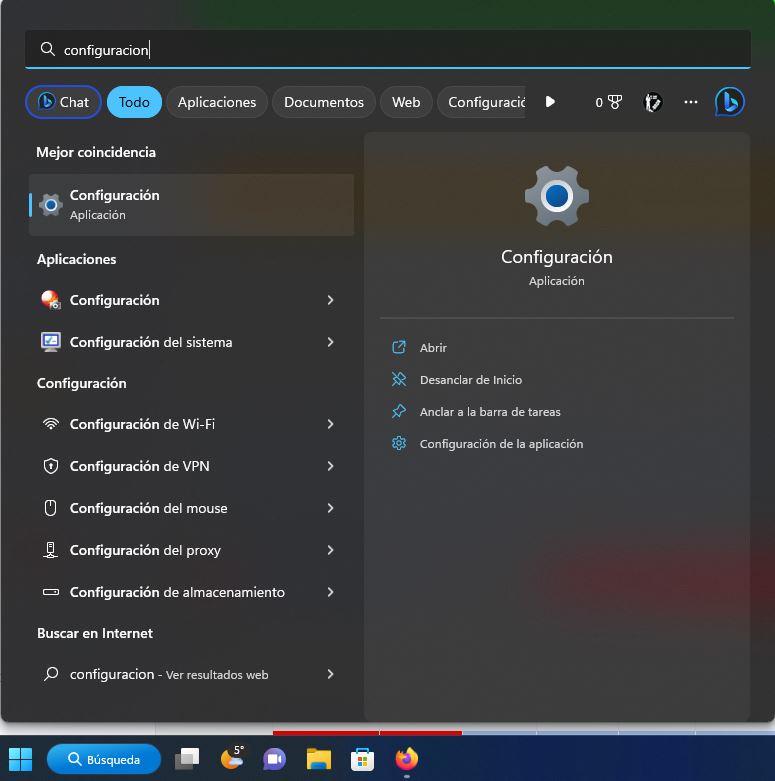
Another method to reset all network settings to factory settings is to do it through the Windows configuration menu itself, without the need to execute a single command through the console. The first thing you should do is click on the Windows icon and look for “Settings”. In the first match that appears, we click and we will enter the global configuration of Windows 11. The menus for the Windows 10 operating system are exactly the same.
Once we are in the «Setting»we go to the «menunetwork and internet» and click on «Advanced network settings«:
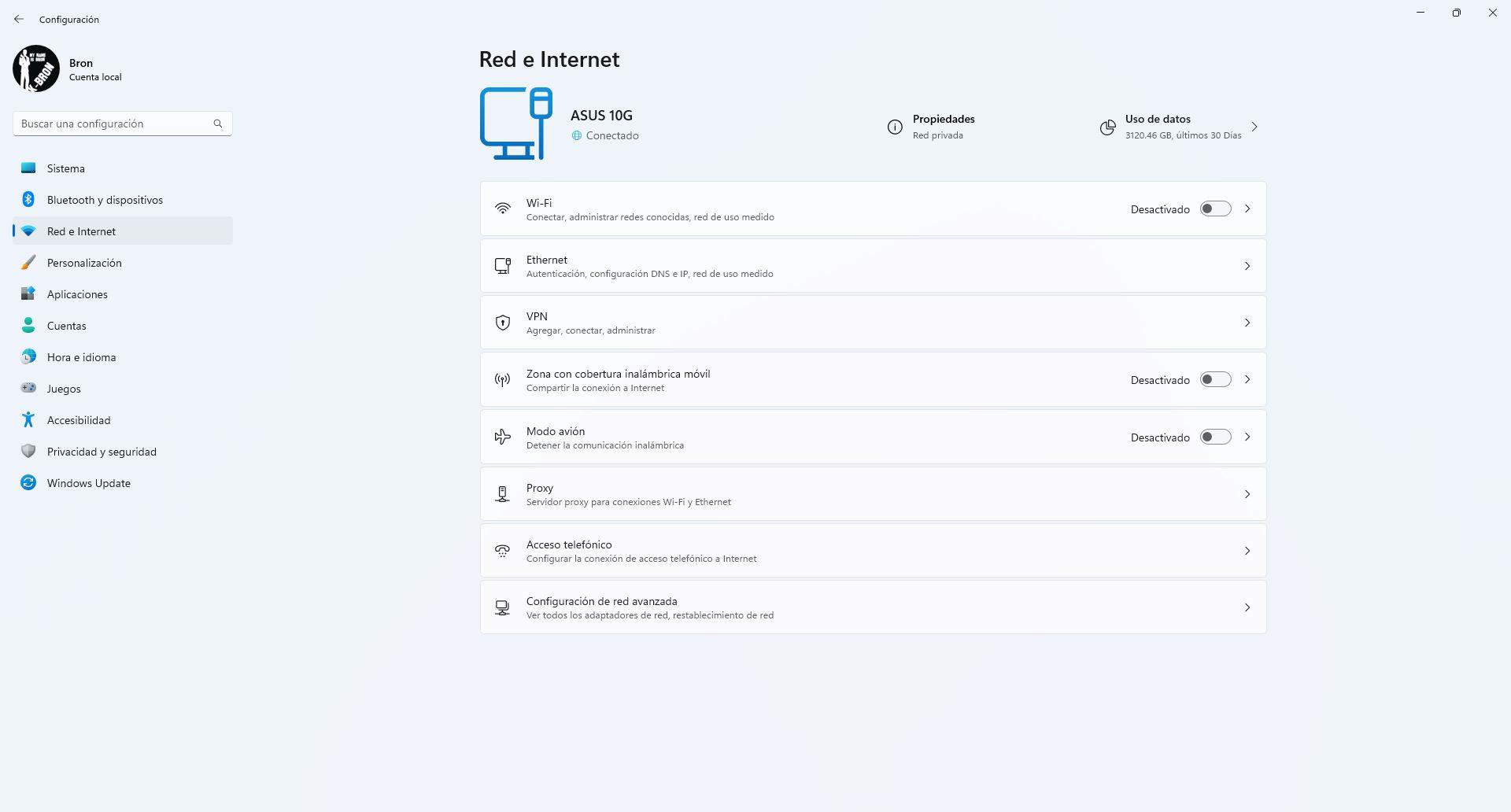
In the section of “Advanced network settings“we have to go to the menu of”network reset» which we have in the lower section.
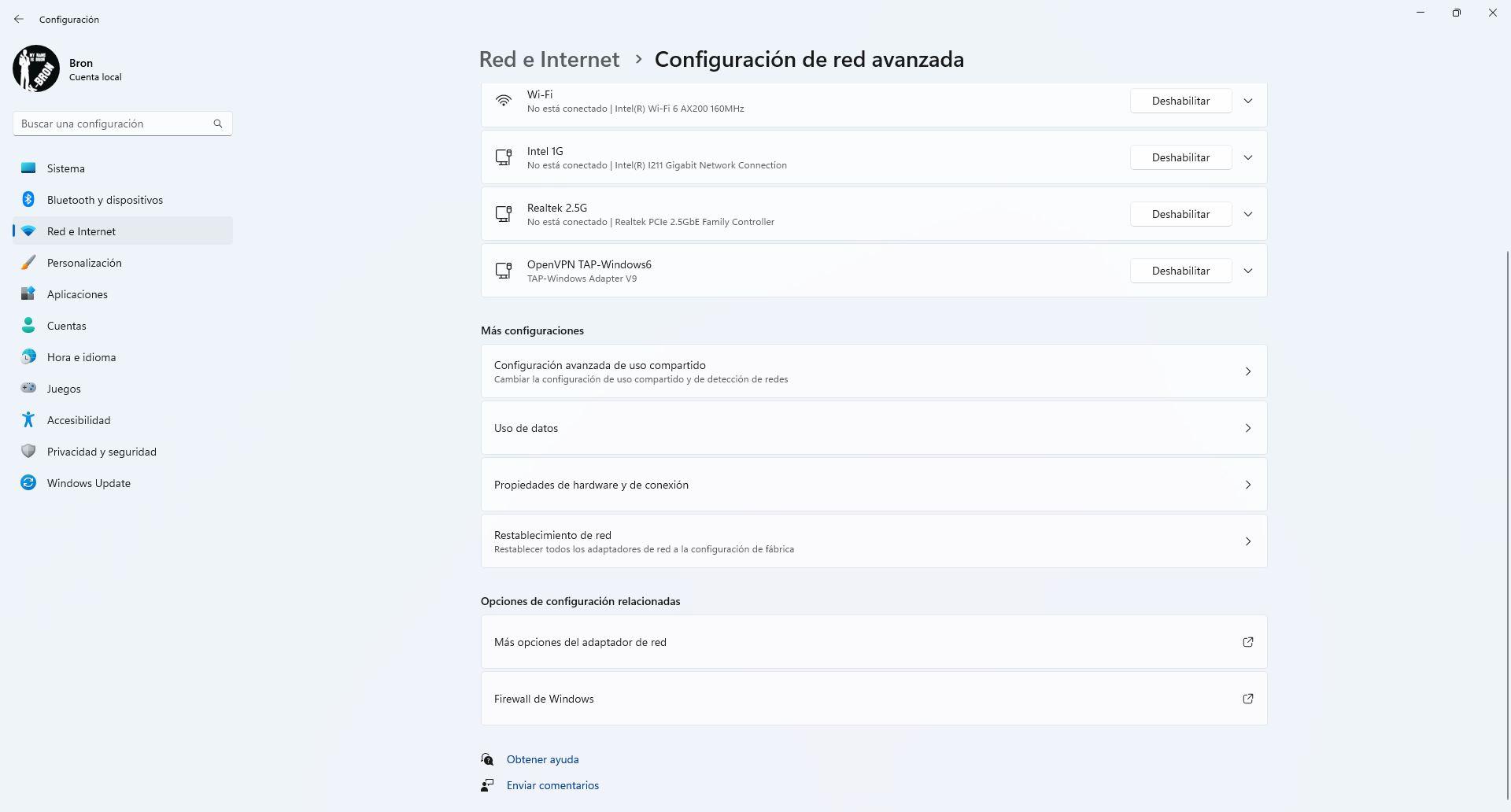
In this new menu we have to click on “Reset now” and the computer will restart automatically. You should know that if you click on this button, all the network adapters will be removed and reinstalled from scratch, with the Windows drivers, and all the network settings will also return to the original default settings.
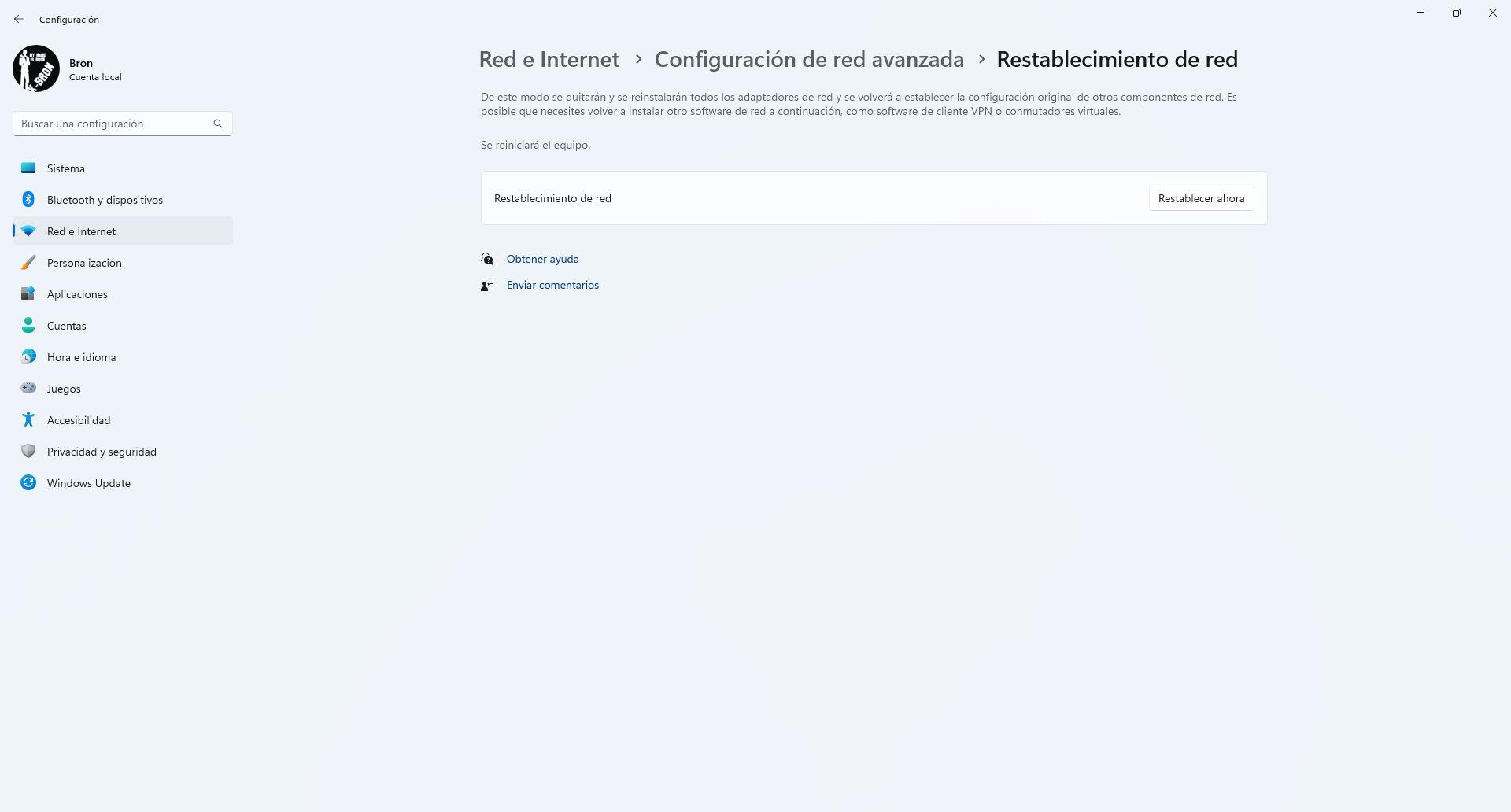
As you have seen, resetting network settings in Windows 11 and also in Windows 10 is very simple through the configuration menus.
conclusions
It is very common to encounter network errors in the Windows operating system, in many cases it is advisable to investigate what exactly is happening, however, when we have already tried to perform many configurations, the best thing you can do is reset all the configuration from the computer through the commands that we have recommended in .bat executable file format.
If your error has not been fixed by the executable file, then you can fully reset the network using the Windows 11 or Windows 10 menus. This process will take care of removing all network adapters and reinstalling them again, of course, all settings will be the default.