Here’s a list of best tips and tricks to get the most out of your Nothing CMF Phone 2 Pro. Improve battery life, customize settings, and enhance your experience.
The Nothing CMF Phone 2 Pro is a budget-friendly smartphone that stands out because of its unique design and impressive features. It combines style, good performance, and great value for money. If you’re new to Nothing or simply want to get the most out of your device, it’s important to know how to use all the features it offers.
The Nothing CMF Phone 2 Pro is packed with tools that can help you do more. Whether you’re taking photos, managing notifications, or just enjoying your device, knowing these tips will make your experience even better. Keep reading to learn how to unlock the full potential of your phone.
In this list, we share 10 best Nothing CMF Phone 2 Pro tips and tricks to help you make the most of your phone. These tips cover everything from extending your battery life to customizing your home screen.
List of 10 best Nothing CMF Phone 2 Pro tips and tricks:
1. Customize Your Home Screen with Essential Space
Nothing OS 3.2 introduces “Essential Space,” a feature that allows you to organize your apps, notes, and tasks in a minimalist layout. To access it, swipe right on your home screen. This space helps in decluttering your interface and provides quick access to your most-used tools.
You can add widgets, shortcuts, and even notes to this space, making it a central hub for your daily tasks. The minimalist design ensures that you stay focused without unnecessary distractions.
Also read: Clear iPhone System Data
2. Enhance Productivity with the Essential Key
The Essential Key, located on the side of the phone, can be customized to perform various actions. Navigate to Settings > Essential Key to assign functions like launching the camera, opening a specific app, or activating the voice assistant. This customization streamlines your workflow and saves time.
By assigning frequently used functions to the Essential Key, you can quickly access them without navigating through menus. This is particularly useful when you’re on the go and need immediate access to certain features.
3. Utilize Modular Accessories for Added Functionality
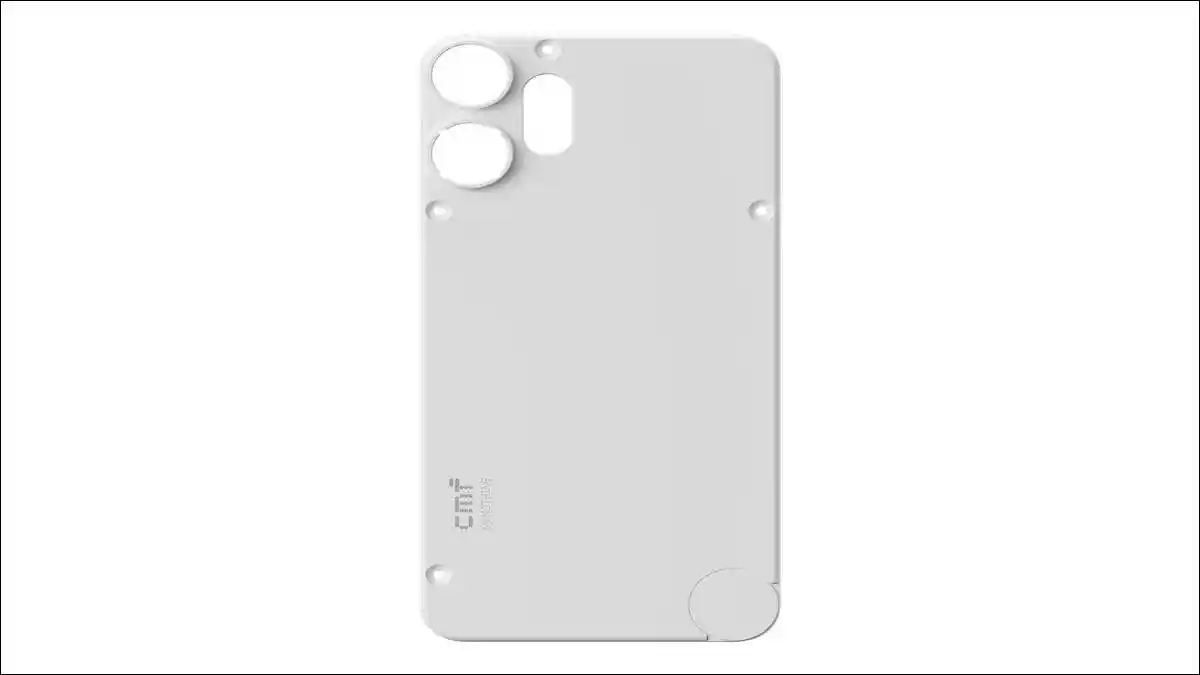
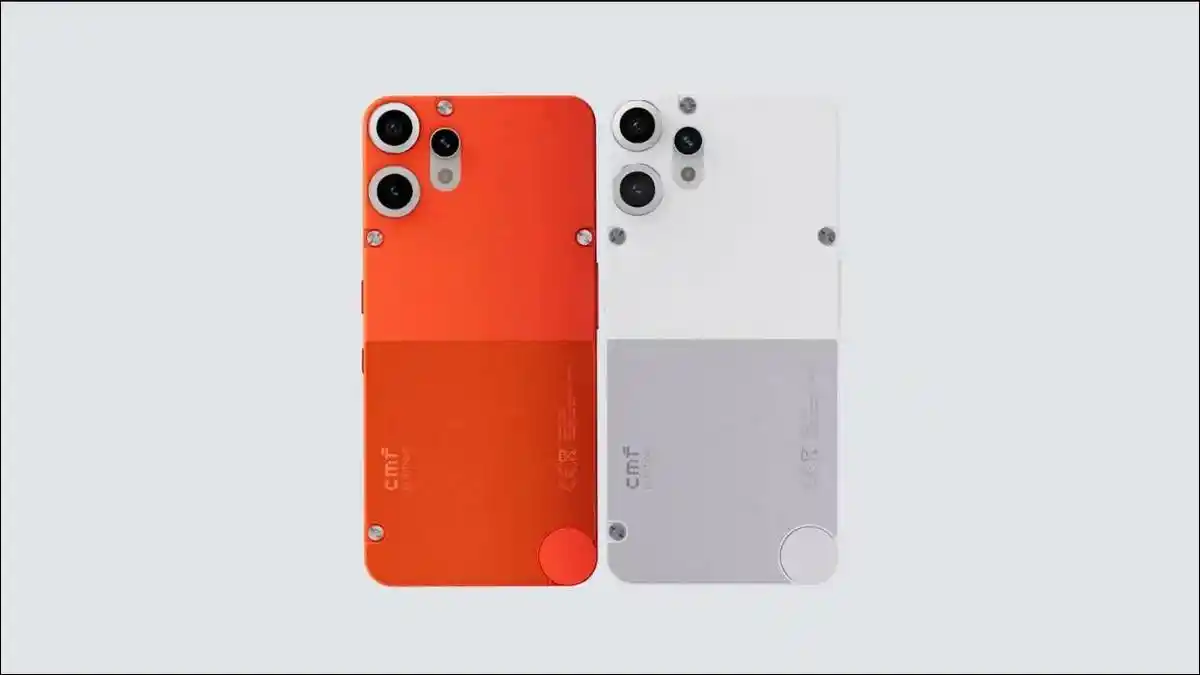
While the back cover is no longer removable, the CMF Phone 2 Pro supports modular accessories through the Universal Cover. These include a kickstand, macro and fisheye lenses, and a lanyard. These accessories enhance the phone’s versatility, allowing you to tailor it to your needs.
To use these accessories, attach the Universal Cover to the back of your phone. Once in place, you can easily snap on the desired accessory. This modular approach allows you to customize your phone for different scenarios, whether it’s photography, media consumption, or convenience.
4. Optimize Battery Life with Smart Charging
The CMF Phone 2 Pro is equipped with a 5,000mAh battery and supports 33W wired charging. To prolong battery health, enable “Optimized Charging” in Settings > Battery. This feature learns your charging routine and reduces wear on the battery by limiting charge to 80% during certain periods.
Additionally, avoid charging your phone overnight or leaving it plugged in after it reaches 100%. These practices can help maintain the battery’s longevity and ensure it performs optimally over time.
5. Take Advantage of the 120Hz AMOLED Display
The 6.77-inch AMOLED display offers a 120Hz refresh rate, providing smooth scrolling and vibrant visuals. To ensure optimal performance, navigate to Settings > Display > Refresh Rate and select “High” for the best experience. This is particularly beneficial for gaming and media consumption.
The high refresh rate enhances the responsiveness of the touchscreen, making interactions feel more fluid. Whether you’re browsing the web, playing games, or watching videos, the 120Hz display elevates your viewing experience.
6. Capture Stunning Photos with the Quad-Camera System
The CMF Phone 2 Pro features a 50MP main camera, 50MP telephoto lens with 2x optical zoom, and an 8MP ultra-wide camera. To switch between lenses, tap the respective icons in the camera app. For detailed shots, use the telephoto lens, and for expansive landscapes, opt for the ultra-wide lens.
The camera system also supports 4K video recording, allowing you to capture high-quality videos. Utilize the various lenses to achieve different perspectives and compositions, enhancing the versatility of your photography.
Also read: How to Disable Google Smart Lock
7. Secure Your Device with Fingerprint and Face Unlock
Enhance security by setting up both fingerprint and face recognition. Go to Settings > Security & Privacy > Fingerprint & Face Unlock to enroll your fingerprints and face data. This dual-layer security ensures quick and safe access to your device.
The fingerprint sensor is located under the display, providing a seamless unlocking experience. Face unlock utilizes the front camera to recognize your face, offering an additional layer of convenience.
8. Manage Notifications with Focus Mode
To minimize distractions, utilize “Focus Mode” during work or study sessions. Access it via Settings > Digital Wellbeing & Parental Controls > Focus Mode. You can customize which apps to pause, helping you stay concentrated on tasks at hand.
Focus Mode allows you to temporarily mute notifications from selected apps, reducing interruptions. You can schedule Focus Mode to activate during specific times, ensuring you remain undistracted during important activities.
9. Customize Quick Settings for Easy Access
Personalize your Quick Settings menu by going to Settings > Notifications & Status Bar > Quick Settings. Here, you can rearrange tiles, add shortcuts, and enable features like Screen Recorder or Do Not Disturb for swift access.
Customizing Quick Settings allows you to prioritize the features you use most frequently. By placing them at the top of the list, you can quickly toggle settings without navigating through multiple menus.
10. Keep Your Device Updated
Regular software updates ensure your device runs smoothly and securely. To check for updates, go to Settings > System > Software Update. The CMF Phone 2 Pro is promised three major Android updates and six years of security patches, keeping your device current and protected.
Enabling automatic updates ensures that your device receives the latest features and security enhancements without manual intervention. This practice helps maintain the performance and security of your device over time.
🔚 Final Thoughts
There’s no doubt that this phone stands out in the budget smartphone market by offering a unique combination of design, performance, and modularity. By using these CMF Phone 2 Pro tips and tricks, you can enhance your user experience and fully leverage the capabilities of your device.
Whether it’s customizing your interface, optimizing performance, or exploring modular accessories, the CMF Phone 2 Pro provides a versatile and enjoyable smartphone experience.