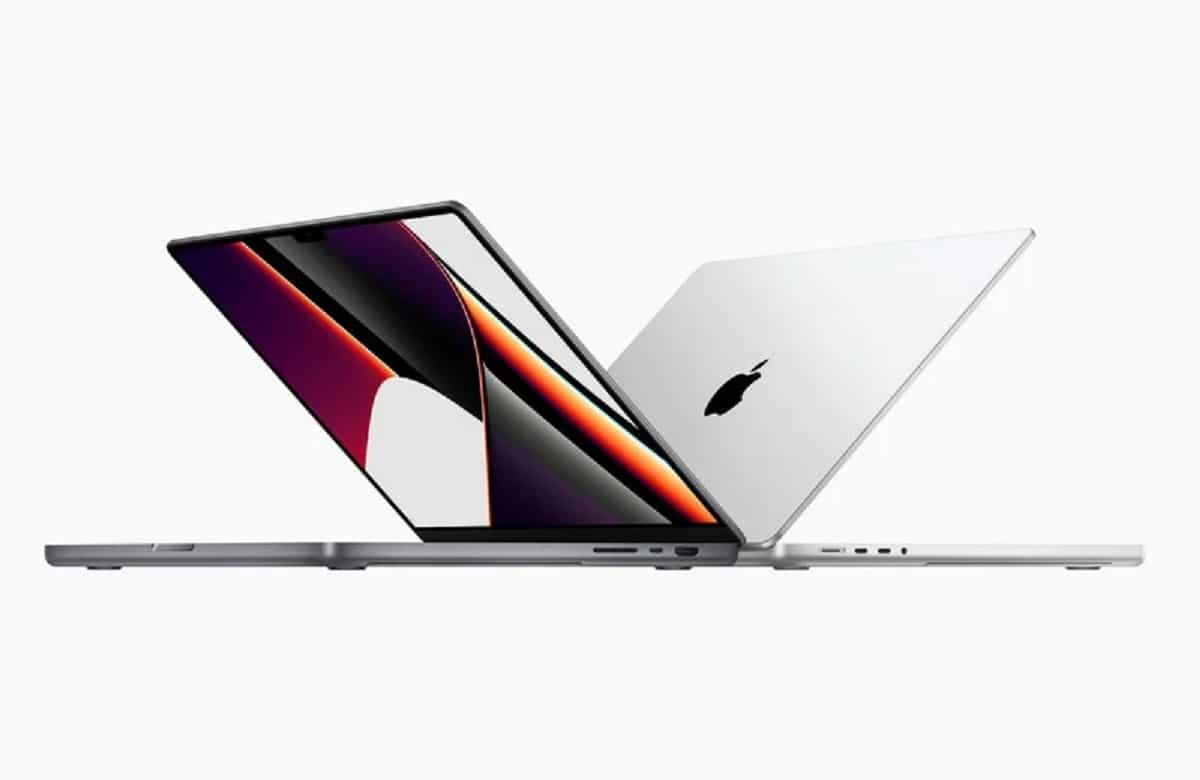
We already know that we have among us the new 14-inch and 16-inch MacBook Pro completely renovated and that they bring the excellent Liquid Retina XDR screen and this was not too long ago. It is supposed that everything should work like a charm and it is not that the opposite happens, but it is true that some inconveniences are detected that if they happen, it is better to explain why. An inconvenience that also happens with Pro Display XDR screens. We talked about some screen brightness issues that Apple is now addressing and what will happen to you if you notice like the brightness dims automatically and you get the warning: “limited brightness”.
Apple has released a new support document for owners of the redesigned 2021 MacBook Pro and Apple Pro Display XDR, explaining the meaning behind the warning icons that appear with a “limited brightness” message in the Mac’s menu bar. In that document it is pointed out that if the ambient temperature of a room is high and the user has been viewing bright content for an extended period of time, the Liquid Retina XDR display installed on MacBook Pros and the Apple Pro XDR Display automatically activate the “low consumption” mode. They will dim the screen, in order not to expose them to more serious problems of overheating.
On the one hand, this is very good news. We have Apple hardware that is very expensive and that is capable of protecting itself in certain adverse situations. However, you can see the downside. How, being such expensive hardware, it is not capable of withstanding adverse conditions, both external and internal. It could be hotly debated. But the main thing in this case is to know that that warning suggests that we should change our screen usage habits.
Apple suggests that seeing the “limited brightness” message be considered:
- Quit any applications that may be consuming significant resources of the system,
- Reduce the ambient temperature of the room. This is the one that can cause the most problems, especially if we are not in our environment.
- Put the Mac to sleep for 5-10 minutes.
If you have a screen Apple Pro XDR:
- Close or hide any window with HDR content.
- Use Apple XDR Display or Pro Display XDR reference mode unless your current workflow requires a specific reference mode
- Reduce the ambient temperature of the room.
If we do what they ask us and the problem still persists, we have no other choice but to contact the technical service. By the way Apple talks about having a room to a temperature of 25º.