Whatever the cause, what you will find is that the Wi-Fi icon does not appear in the taskbar, as it always appears next to the clock in Windows. This will prevent you from connecting to the wireless network you are interested in and you will not be able to browse the Internet normally, as well as use any connected program.
Steps to fix it
After having explained what are the main reasons why the error appears with the Wi-Fi icon in Windows 11, we are going to explain to do in order to solve it. Generally, it is a very easy problem to solve, since you will not have to install anything, or perform any complex configuration.
Check that the adapter is enabled and connected
The first and easiest thing to do is check that the adapter is actually connected. Especially if you’re using an external USB-connected Wi-Fi receiver, it may have been moved or misplaced, causing the icon to not appear to connect.
You can also see if the adapter is properly enabled at the system level. In this case you have to go to Start, go to Settings, Network and Internet, Advanced network settings and More adapter options. There you will have to check if the wireless receiver is enabled or not and, if it is not, enable it.
Update network adapter
You have the properly updated network card drivers? This is essential for them to work smoothly. There may be errors that prevent Windows from recognizing them or us from being able to use them normally. Therefore, you should install the latest version available for both performance and security.
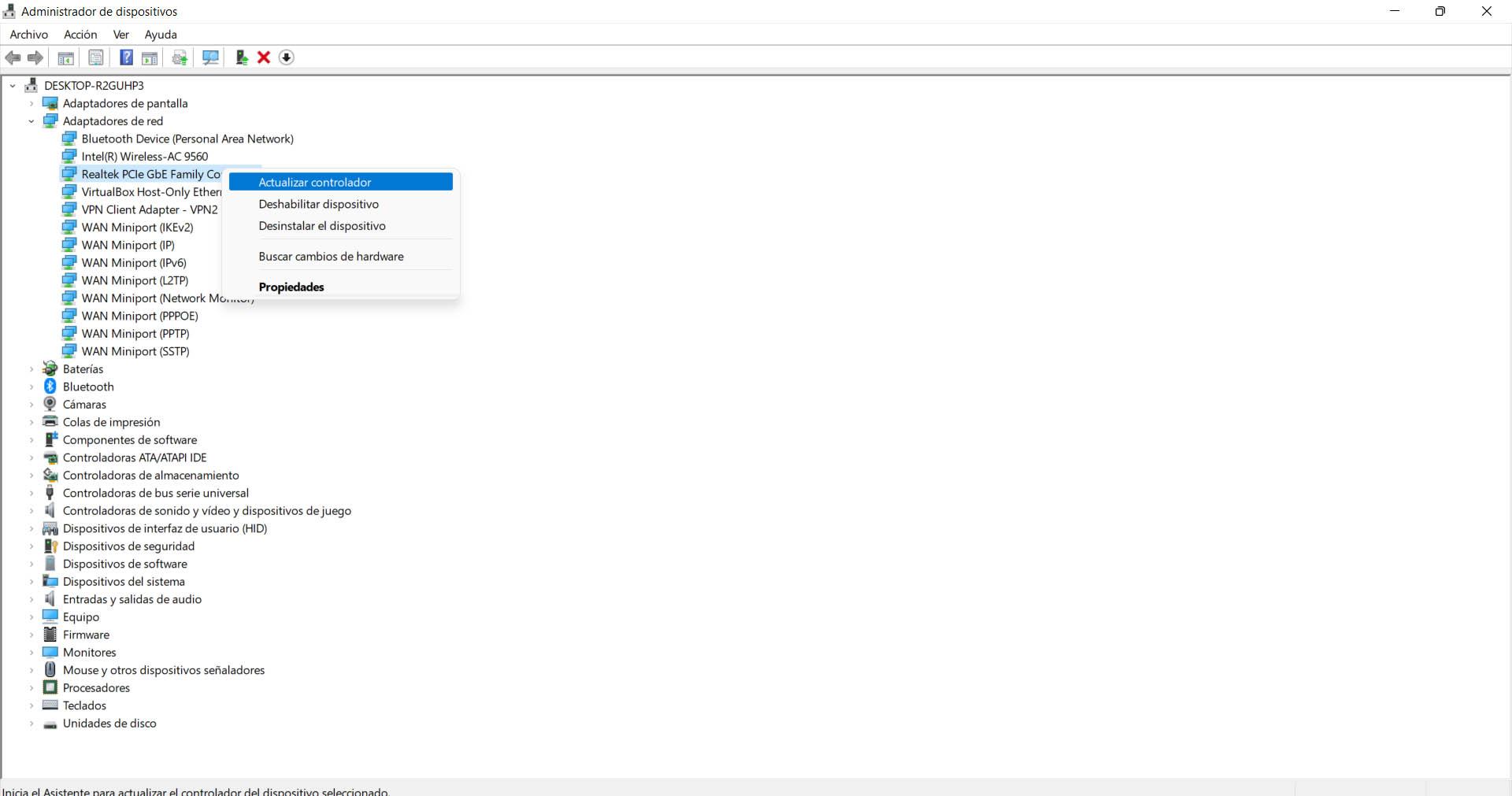
To update the network adapter you have to go to Start, enter Device Manager and Network adapters. There you select the Wi-Fi network card, click with the second mouse button and give update driver. Then restart the computer so that the changes are made correctly.
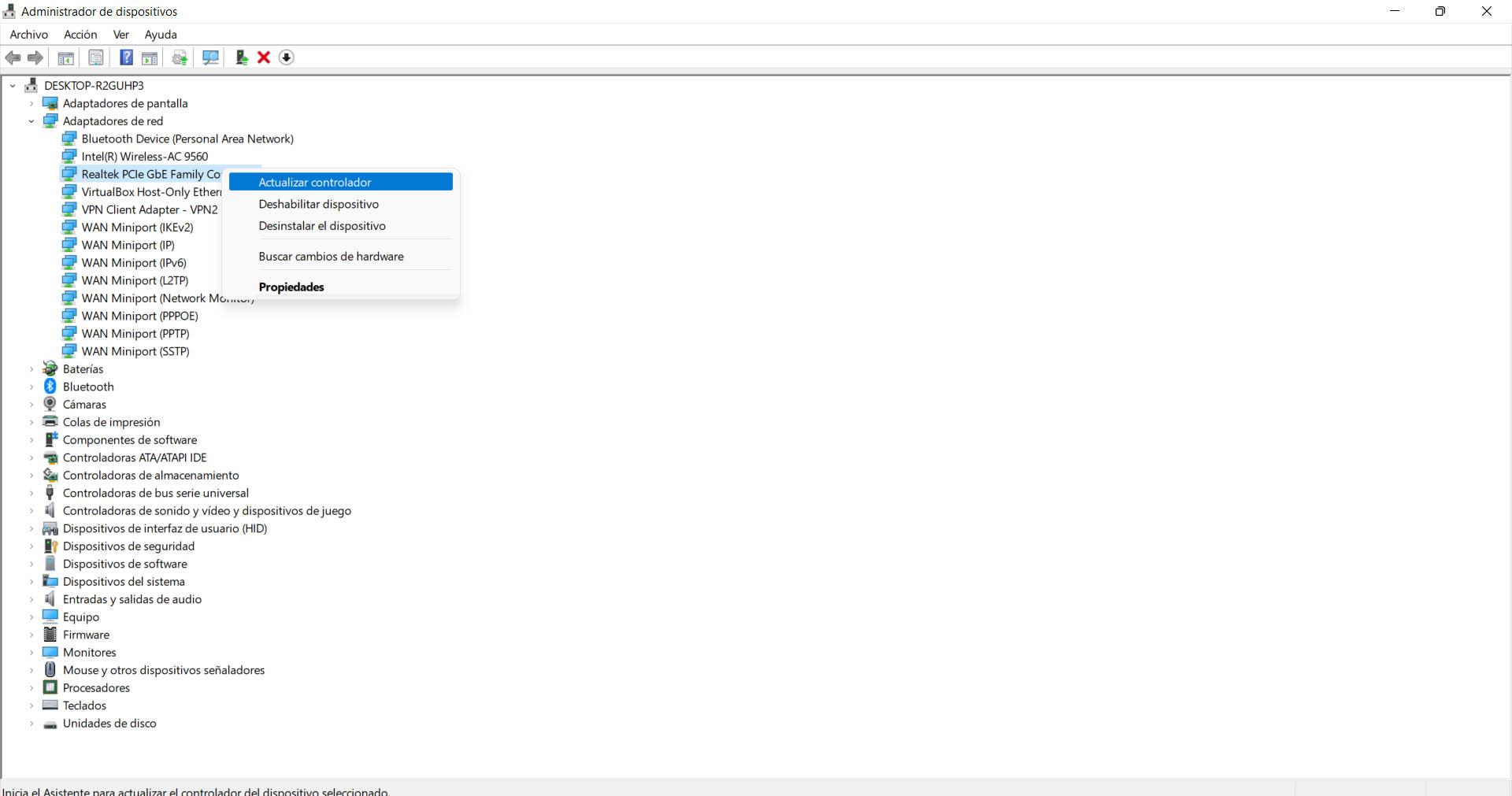
Reinstall drivers
An alternative is to reinstall the network card drivers. Maybe there is some problem and they don’t work properly. For example an update that has been hung and has not finished well. That can generate conflict at the software level and it is best to reinstall them to avoid problems.
The steps to follow are the same as those indicated above. You have to go to Start, enter Device Manager, Network adapters and click with the second mouse button on the corresponding one. But this time you have to hit uninstall device and then reinstall it.
Use the troubleshooter
You can also try the Windows troubleshooter. This is very useful for detecting errors and being able to correct them so that the connection works as well as possible. It is a simple process and sometimes it can solve system level failures or settings that may block the connection or cause the Wi-Fi icon to not appear.
In this case you have to go to Start, you go to Settings, System and there you click on Solve problems. Later you go to Other troubleshooters and there you click on Network adapter and Run. You have to finish the process and see if this fixes the problem.

Return to defaults
If you find that everything we have mentioned regarding the network adapter and settings in Windows has not had a positive effect, you can always return to the default values. This will return the settings as they were by default so you can fix any errors that have arisen.
To do this you have to go to Start, enter Settings, go to Network and Internet and there you enter Advanced network settings. Once there you have to go to network reset and continue the process. Once finished, restart the computer so that the changes are made correctly.

Check for updates and security
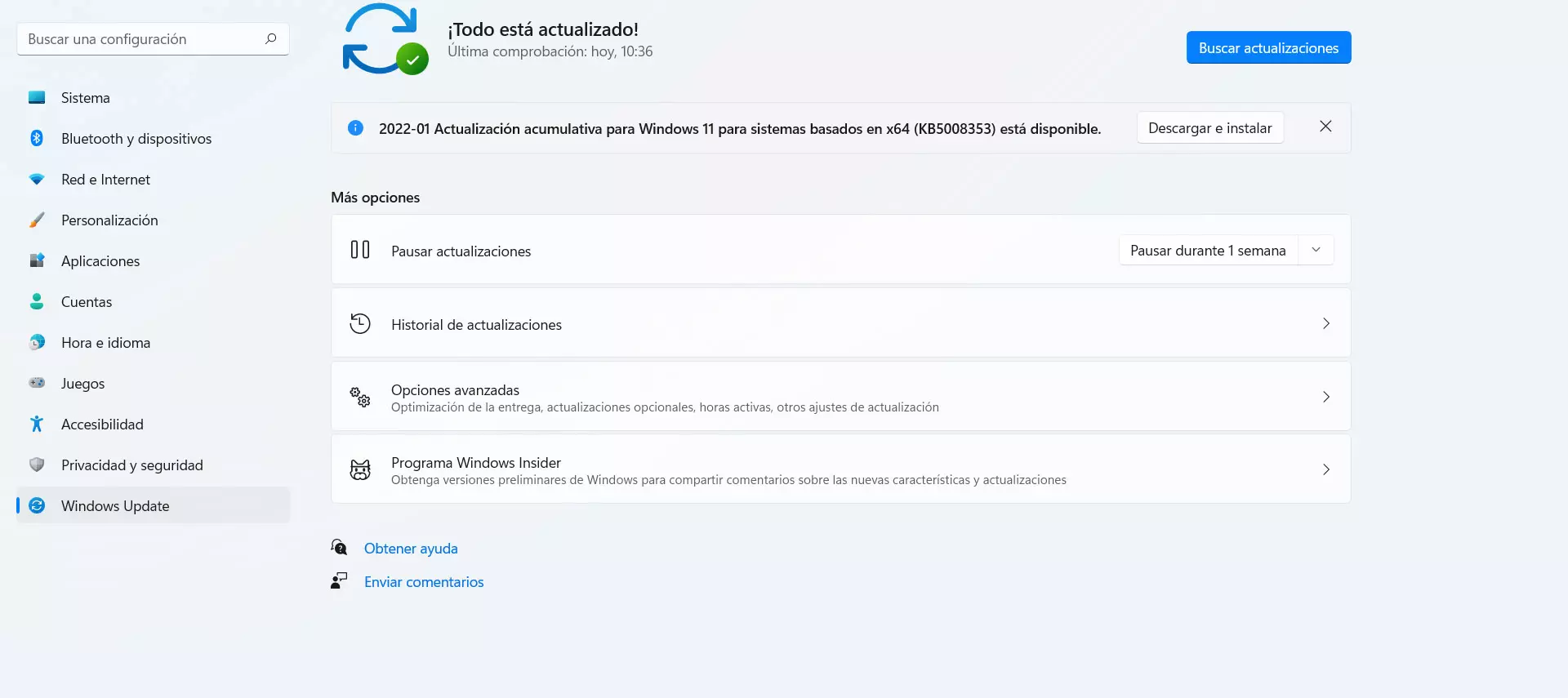
But the problem that the Wi-Fi icon does not appear in Windows can also be due to having Windows out of date or even a security flaw. Therefore, what you should do is verify that you have the latest version installed. To do this, go to Start, enter Settings and access Windows Update. Possible new versions will appear there and you install them.
Additionally, you can check if the computer has any type of malware that may be causing problems of this type. For example a virus that affects the network adapter. The best thing in this case is to use a good antivirus. Windows Defender, Avast or Bitdefender are some of the best known options that you can use.
This is something you should review periodically. You should always have the latest versions to avoid security problems and ensure that everything works correctly. It is also essential that there is no malware, or any threat that could affect performance or the information you have saved.
In short, if the Wi-Fi icon in Windows 11 does not appear, it may be due to different reasons, as you have seen. But you also have several options with which you can solve the error and that the network adapter appears without problems to be able to surf the Internet wirelessly.