If you thought you had heard everything about Siri, maybe you have, but know that you can hear it again in the form of a whisper. Or, at least, get something similar with an option that many do not know about the Apple assistant. This way, when you don’t want to disturb the neighbors, someone is sleeping, or you just have a headache, you can tell Siri to lower your voice in a very curious and useful way In some situations.
Until now, it seemed that only Amazon, with its smart speakers Threw outI could whisper to you softly. In this way, you can interact with Alexa without letting others know too much or disturbing them, if they are resting or doing something important.
However, while it seemed like that was only available on Amazon devices, and in fact they’ve advertised it as something different, provided by neural networks that distinguish normal-level voices from whispers, it’s not exclusive to them.
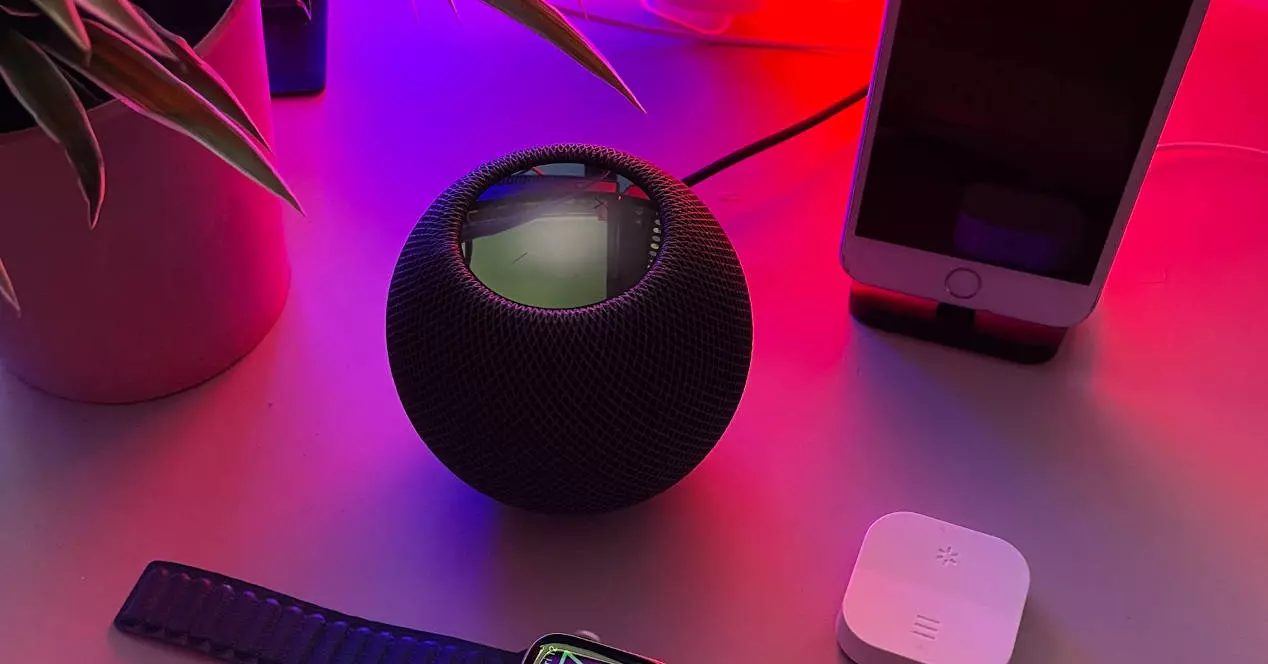
If you have a device HomePod apple for smart home Siri can also whisper to you if you want. Or, at least, do something similar and interact with you in a low voice.
Setting it up is very simple and you can do it in two ways, although it seems that not many Apple users know about this feature.
The 2 ways to get Siri to whisper when she talks to you
Let’s start with the easiest way to enable this option. For that, just say to your Homepod: “Siri, turn on Siri auto volume” and you will have that feature working.
However, you can also do this from the Accessibility options on your HomePod. It is a bit hidden, but we guide you step by step with images.
- To get started, log in to your app. HomePod inside your iPhone or iPad.
- Now, go down until you find the option «Accessibility» and tap on it.
- Once on the new screen, look at the section «voice responses» which has the option of «Adjust Siri volume automatically». Activate her if she isn’t. Here below you have the images so you don’t get lost.

As you can see in them, Apple warns you that Siri is not going to whisper by default, but instead will try to speak at a volume similar to the one you speak to it. If you yell at him as usual, you will have unlocked the achievement of making it look like you are arguing with someone while yelling at a machine.
But if you whisper or lower your voice, she will also answer you in that tone.
How Siri’s “whisper mode” works
While Amazon boasts of neural networks, Apple has opted for something much simpler, but just as effective. Siri calibrates the volume of your voice, but also background noise or possible content that’s playing, and based on the decibels it detects, it’ll pick a volume to try and balance all of that out so you can hear it.
Similarly, if it detects too few of those decibels, it will respond accordingly and your HomePod will whisper to you. So so.
How to turn off your HomePod’s automatic volume adjustment mode
If you are tired of Siri imitating you and you want her to always speak at the volume you have configured, nothing could be easier.
Tell your HomePod to turn off automatic volume for Siri (just the opposite of what you can tell it to enable it) or replay the steps to get into the HomePod Accessibility menu described above.
disable the option and you would already have it.
As you can see, it is very easy for Siri to look a bit like Alexa and try to emulate the volume of your voice, to adjust to the situation.