Why are downloads blocked in Chrome?
This is a problem that has nothing to do with the connection. In other words, we are not talking about downloads being cut off because we do not have good Wi-Fi coverage or the page we entered stops working. We are facing a problem that, with everything apparently in order, the browser lock some file that we are going down because he considers it unsafe.
The most common cause is that the browser, through the security settings, detect that this file is dangerous or suspicious. This causes it to automatically block it and you cannot download it. Try it again and it’s exactly the same. We can say that it is a false positive, something that also happens with antiviruses, for example.
It may also happen that there is a problem with the browser, such as being outdated. The fact of having an obsolete version can generate conflicts of this type and cause a download to be blocked, for example. It is a possibility that must be reckoned with.
On the other hand, there are many accessories that we can install in the browser. Some of them are related to security and can even act as a kind of antivirus to detect threats. Have you installed anything recently? Maybe that is the cause and you should check what you have installed.
Troubleshooting steps
After explaining what are the main reasons why Chrome can block a download, we will explain what to do to avoid it. Of course, we are going to start from the basis that what you are downloading is really a safe file, that you know with total certainty that it is not malware. Otherwise you would be putting your team at risk.
Set up Chrome security
The first thing you should do is configure security from Google Chrome. Most likely, the browser will block downloads because of it. It is an option that is activated by default and is used to detect possible threats that we download from the Internet by mistake. But of course, there is what is known as a false positive and it may affect downloads that are really safe.
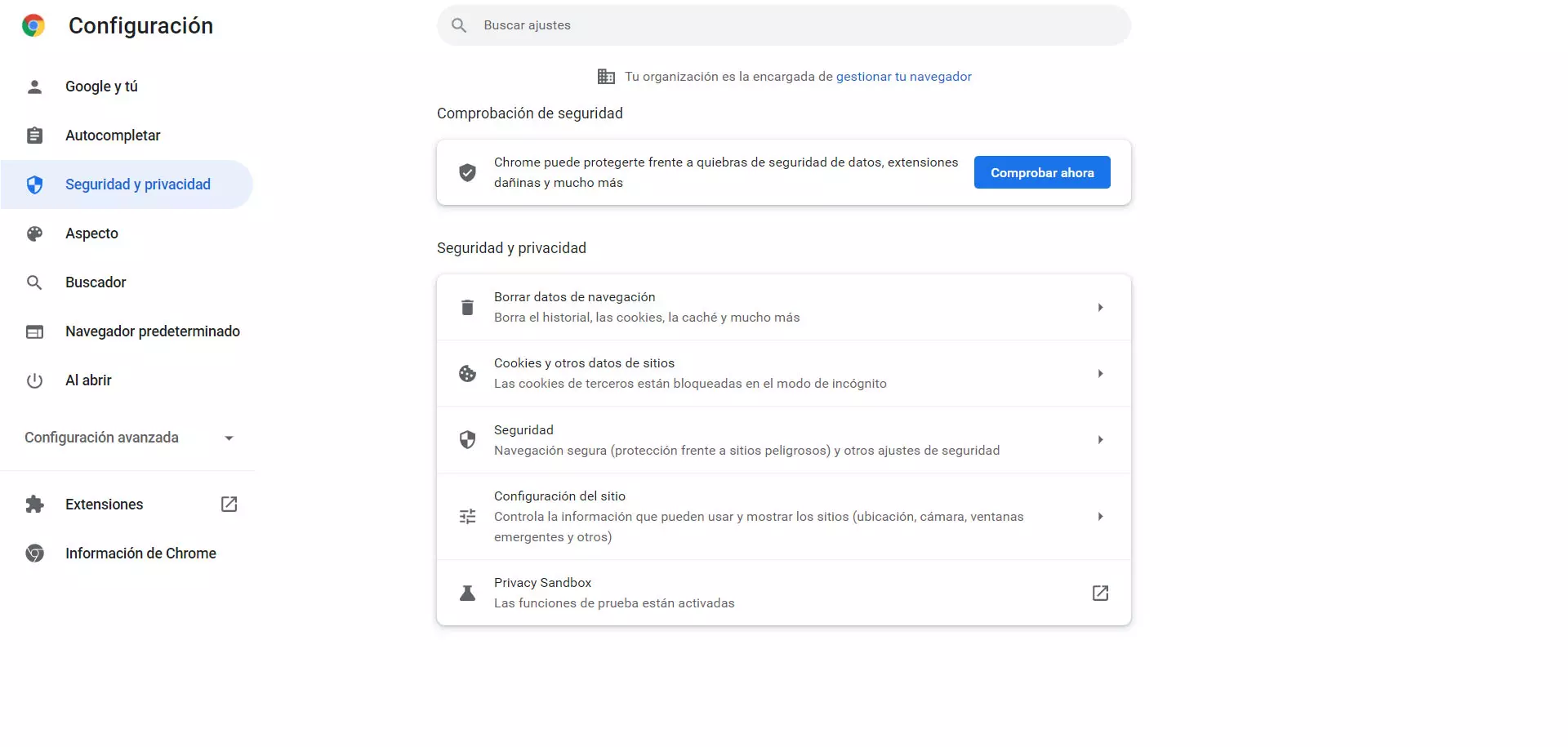
To do this you have to go to the menu at the top right, enter Settings and go to Security and privacy. There you will see different options and the one that interests you in this case is the Security.
Once inside Security, you will see that a box of Secure browsing. By default, Standard Protection is checked. This means that it will detect and warn if it finds any threat that could put the program’s operation at risk. It will check the URLs, the services we use and also the files we download.

To correct the problem if Chrome blocks downloads, what you are going to do is check the box of Without protection. You must be careful with this, since it will mean that the browser will not analyze what you download, nor will it check the pages you visit in search of any threat. But if you trust the antivirus that you have installed and you also know that what you are downloading is really safe, you just have to check this option.

A message will appear, as you see in the image above, where you have to confirm that you really want to disable Chrome protection. From that moment on, the browser’s security will no longer act. However, you can reconfigure it as soon as you download that file and the browser is once again fully protected.
Check that the browser is up to date
Have updated google chrome to the latest version? It is important that you check it because it may be the reason why errors of this type appear. It is always a good idea to have all the patches and updates that are available, even more so when it comes to programs that connect to the Internet.
To verify the version of Chrome you have to go to the menu on the top right, click on Help and go to Google Chrome Information. There it will appear what version you have installed and, if there is a more recent one, the installation will begin automatically. It is a quick process and once it is finished you restart the browser so that the changes are made correctly.
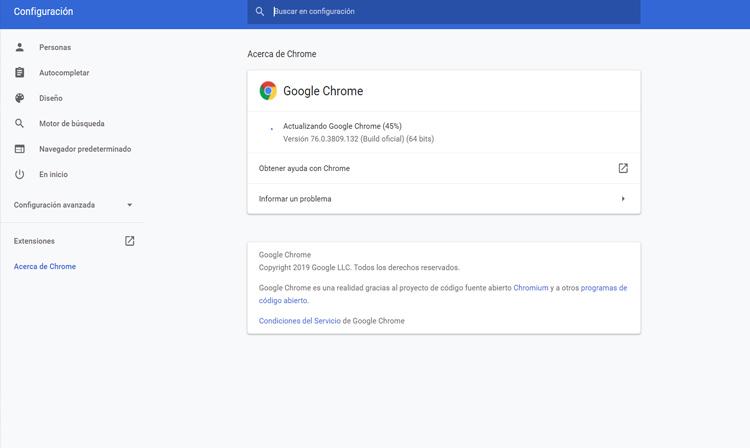
Although this is an automatic process, which is carried out only every time there is a newer version, there could also be a problem, such as an installation hanging due to a connection failure and that causes the files to not be installed. most recent and you have to do it manually.
Check plugins that give problems
Another very important point that you must verify is that you do not have any extension that is causing problems. That could result in the browser blocking a download even though the file is safe. This can especially happen if you have installed a security plugin that is precisely in charge of reviewing everything that we download from the network or all the pages that we visit.
To do this you have to go to the menu at the top right, click on More tools and enter extensions. All the ones you have installed will appear. You can pause any of them and see if this fixes the problem. You especially have to observe those that are security and may be blocking Chrome downloads.
If you have recently installed any plugins it is more likely to be one of them. It may not work well, it may be outdated or for any reason it is causing conflicts with the browser. There you should also set your sights and test if by disabling them the download can work again without problems.
In short, as you have seen, there are several reasons why Chrome blocks a download. It is a problem that can appear when you try to download a file or document from the network, even though it is really something safe and should not be blocked. We have explained what you should do to avoid it and basically what you have to do is configure the browser’s security, which will be the main cause, as well as check that it is updated and see if any extension has problems.