Generally, these projects are made up of a series of independent applications that cover the sectors that we need. The regulars here are usually a word processora program of spreadsheetsa mail manager, a client for the cloud, an application for multimedia presentations, another to design mathematical formulas, etc. In these lines we want to focus on the LibreOffice open source project, one of the most popular and used proposals of this type.
We can download and use it from its official website completely free of charge, which will be appreciated by many. Here we find several interesting programs when carrying out our office jobs. As is usual in these cases, these applications, as we discussed, offer us a series of user interface functions by default. These elements are adapted to the needs of most, but we can also customize some parameters.
All this will help us to be more productive when using the tools and functions of the office suite. It is for this reason that LibreOffice offers us a control panel from which we have the possibility of managing the customizable functions of your programs, as we will see. And it is that this two control panel we mentioned allows us to fully customize the taskbar of the programs that make up the suite. Specifically, we are referring to the bar that is located at the top of the main window of these applications.
Customize the LibreOffice toolbar
Usually it contains a series of shortcuts to the most common functions to be able to execute them quickly. Initially, the heads of the office suite offer us a series of buttons that they consider to be the most common. But this is not extensible in all cases, so they also offer us the possibility of changing this interface. As you can imagine, all this will allow us to be more productive as well as effective when working with these programs on a day-to-day basis.
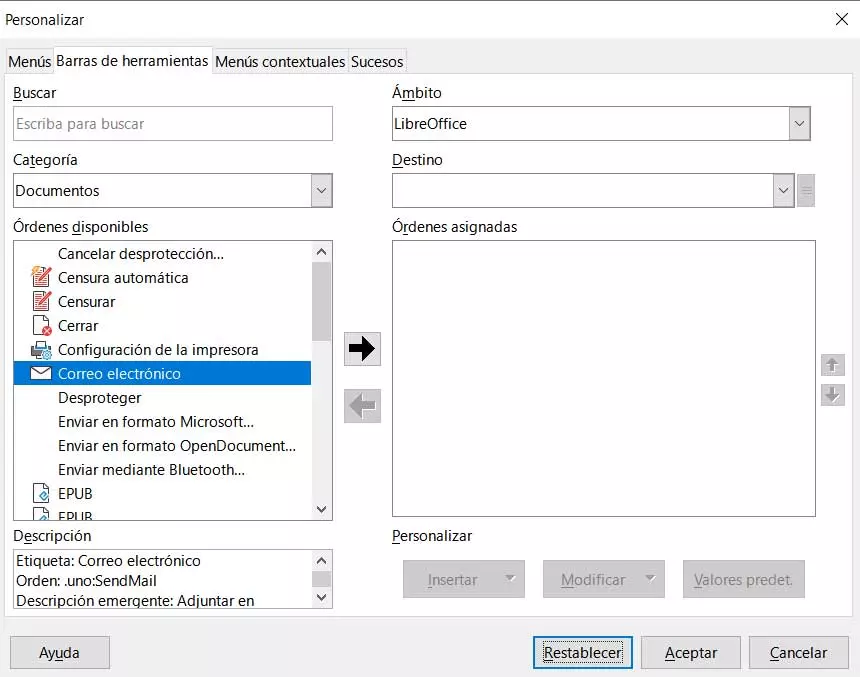
Well, to achieve all this that we are telling you, the first thing we do is open the LibreOffice control panel typing the name of the suite in the Windows search box. Likewise, we can also access this section from the icon that is created on the desktop by default when installing the suite. Next, we only have to go to the Tools menu of the window that appears, and opt for the Customize option.
Here we are going to find a series of tools that are part of the program and that we can add to suite bars if we so wish. We just have to do a search in the Available Orders section to add them to the list. main program interface. This is something that we can repeat as many times as we want with the functions that we use the most. We also have a button to restore default settings of the suite.