When we have a home NAS server, it is normal to leave it on permanently to access your data at any time, take advantage of the possibility of acting as a VPN server, and even to make backup copies of our files or photos automatically. However, if you are not using it, the hard drives that we have installed can go into sleep in order to save energy, avoid premature wear on the hard drive, and also reduce the temperature of the drives somewhat. Today at RedesZone we are going to explain everything you should check if your hard drives never go to sleep, and that is that we depend on the applications that we have installed and if they are in use.
How to enable standby mode of disks in QNAP
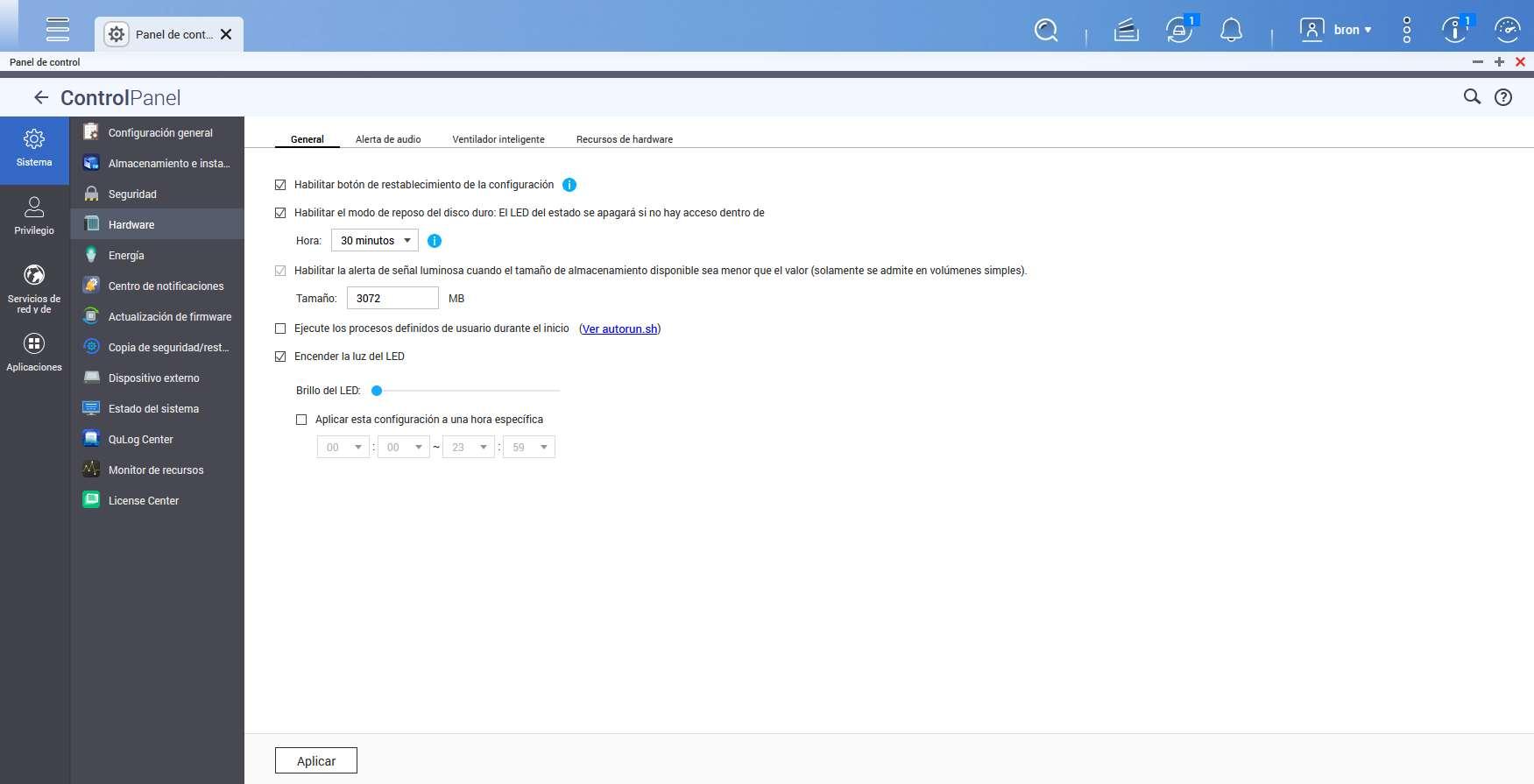
By default, QNAP servers come with hard disk sleep mode enabled, if we want to disable this function or set the minutes without access until it goes to sleep, we can do it in the following menu: Control Panel / System / Hardware. Once we are inside, we can see the following menu:
- Enable hard drive sleep mode (Status LED will turn off if there is no access within…)
If we display in the “Time” section, we can see that we have the possibility to configure the suspension from 5 minutes minimum to 60 minutes (1 hour) maximum. By default it is set to 30 minutes, which we consider to be quite balanced, so our recommendation is that you use this setting. In case you want your hard drive to go to sleep sooner, then you can choose the 5 or 10 minute option, but keep in mind that it will go to sleep more times.

Once we know how to enable this configuration option, we are going to tell you why on some occasions the hard drives do not go to sleep, even though you have configured it correctly.
Check these apps if they don’t go to sleep
Even if you successfully enable hard drives to sleep, they may never go to sleep if you have certain features configured. According to the manufacturer QNAP, if your hard drives won’t go to sleep, you should check the following built-in applications On QTS and QuTS hero OS:
- UPnP configuration that we have it available in the myQNAPcloud app. You should disable this functionality for security, and if you want it to go into sleep mode.
- File and folder sharing via Samba, FTP etc.: If our NAS is accessed from the local network from multiple devices simultaneously, the disks will not be able to go to sleep until none of the clients are connected, that is, they must all be disconnected and stop transferring data so that they can go into sleep mode.
- Generation of thumbnails for multimedia: If you have the DLNA server enabled to index and generate the thumbnails, it may not go to sleep because it is doing this job. You must remember that the process of generating these thumbnails can take a long time, so the disks will not go to sleep until it is finished.
- Microsoft Networks: If you have Active Directory service, WINS server, or Domain Master configured, it might not enter sleep mode.
- Internet access to the NAS: If you have your router’s DMZ configured to the NAS or an open port, it is possible that it is receiving network traffic from the outside, and this causes the disks to start up and not go to sleep.
- Shared folder settings: If we have shared folders created and we have some kind of access to them by other applications, you will not be able to use sleep mode.
- Connecting a Wi-Fi adapter: If you connect a WiFi adapter, your drives may not go to sleep.
These are all the apps and services that we have installed by default on the QNAP OS, however, if you have additional apps installed on the NAS, you might run into problems as well. The following applications could cause it to not sleep:
- BitTorrent download manager: if we are downloading or sharing P2P files, they will not go into suspension.
- Container Station: if we have different services running with Docker, it is necessary to read and write to disk.
- Hybrid Mount: if we have configured a connection with the Cloud we could have data exchange.
- Notes Station 3: If we are writing or reading notes, it might not go to sleep.
- OceanKTV
- Q’Center Agent and also Q’Center Server.
- QuFirewall: All possible attacks are saved in the registry, and written to disk.
- QmailAgent: when receiving mail it is necessary to write data to disk.
- HelpDesk: could perform disk writes and reads.
- Virtualization Station: if we have virtual machines running, and they are hosted on the disks, then logically they will not go to sleep.
If you are using QNAP applications for your PC or Mac, it could also affect, such as Qfinder Pro, Quick Install Wizard and also NetBak Replicator, because these services need the NAS server to be active.
Of course, if you install third-party software like Transmission to perform the downloads, then we will also need to have the hard drives working. Other apps that QNAP tells us might affect are Mattermost, McAfee Antivirus, and also Plex Media Server. Therefore, we should review any application or service that may be using the hard drives, and for this reason they do not go to sleep.
Detects the process that prevents disk sleep
The QTS and QuTS hero operating system is based on Linux, so we will be able to easily and quickly check what the last reads and writes have been on the disk. This will allow us to know what application or service has been reading or writing, therefore it is impossible for the disks to enter sleep mode. In order to verify this, it is necessary to follow the following steps:
- You log in to QTS as an administrator.
- You activate the SSH service to enter by command line.
- You open Putty or any SSH client to enter the NAS server via SSH protocol.
Once you are inside the NAS with the “admin” user, you must enter the following commands:
cd /tmp
wget --no-check-certificate https://download.qnap.com/Storage/tsd/utility/Disk_Standby_Debug
chmod 755 Disk_Standby_Debug
for (( i=1; i<=30; i=i+1 )); do ./Disk_Standby_Debug --file 300 ; cat /var/ledvalue; echo -----${i}------;sleep 300; done 2>&1 | tee /share/Public/Standby_test.log
On the screen it will show us a list of the last files that have been modified (it has been written on the disk, and for this reason it does not go into suspension). In this list we can see what process is causing the writing, for example, if it is writing to a path like «/share/CACHEDEV1_DATA/.qpkg/Qcenter/» means that Qcenter is activated, and because of this application it does not go to sleep. To stop it, we can stop the process from the App Center and in this way we will no longer have additional modifications.
As you have seen, if your hard drives on a NAS server do not go to sleep, you should check many default applications and services, and also the additional software that you may have installed on the NAS, which could cause them to never go to sleep. .