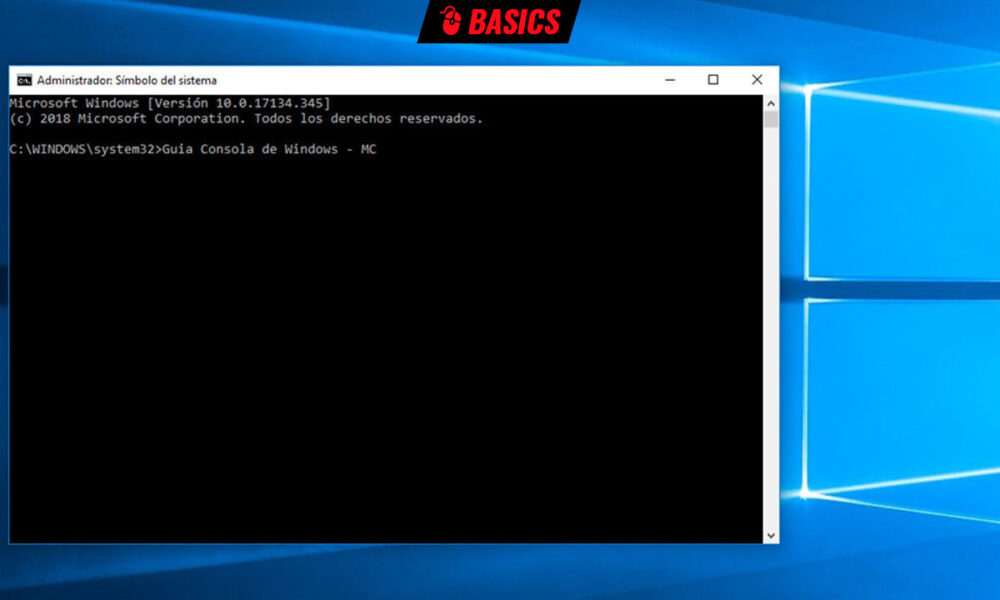
Changing the user password of a Windows account is extremely simple using a single command from the command prompt, without having to navigate through any graphical configuration menus. And this thanks to the enormous power of the Windows console.
Equivalent to the Linux terminal or the one provided by other operating systems such as macOS, this application runs in text mode and although it is not as intuitive as a graphical user interface, it shows its potential when executing repetitive tasks, on occasions where the graphical interface is blocked, to manage certain components or access certain system information that is not available in any other way.
Access to the Windows command line is offered in two different modes, user and administrator. The first limited and the second more powerful and with access to the entire team. Additionally, Microsoft offers a more advanced variant called PowerShell that is aimed at system administrators and more recently has brought them all together in Windows Terminal.
Changing an account password is a simple yet powerful example of its ability. For it:
- Do a search for “command prompt” or right-click on the start button to access the Windows advanced menu.

- The function needs to run as administrator. Use it.
- In the command prompt window, type the command net user USERNAME PASSWORD, replacing “username” with the username and “password” with the new password you want to use.

- If the username has spaces, be sure to enclose it in double quotes.
With this command you can change both admin and local account passwords. If you don’t remember all the ones to use the equipment you can see them with the command netuser. Little more. When you log in to that account you will already be able to use the newly created password.