Many of you already know that we can currently find a huge number of programs for playback of our multimedia content. There are lighter solutions than others, some paid, others more compatible, and there are even more beautiful than others. In this way, the users themselves have the freedom to choose the program that best suits their needs or tastes. With everything and with it on most occasions and installed on all types of devices, we find the aforementioned VLC.
It is one of the most stable and reliable options in this sense that we can find in the current market. But as we mentioned, on many occasions we will see that it coexists with other similar applications on the same computer. We talk about other programs besides Movies & TV, which is the player that Windows offers us pre-installed from the beginning. But equally on most occasions we may intend to run our video and audio media files in the popular VideoLAN program.
Therefore, at this point it may be the case that we want open directly and by default, all our videos with VLC. This is something that may have changed after installing a new media player on the computer, but we can reverse it, as we will see below.
Always open your video and music files in VLC
In all this that we tell you, it directly affects the operating system, which in most cases will be Windows on desktop computers. If what we want is to run the aforementioned program for our commented files, we will have to correctly configure the system itself.
Specifically, what we must specify to Windows is that this software to play videos that we are commenting on is the one we want use default for these files. In this way, every time we double-click on them, VLC will automatically start up. In order to achieve what we are telling you, we must access the Configuration application of the operating system, for example, by means of the Win + I key combination.
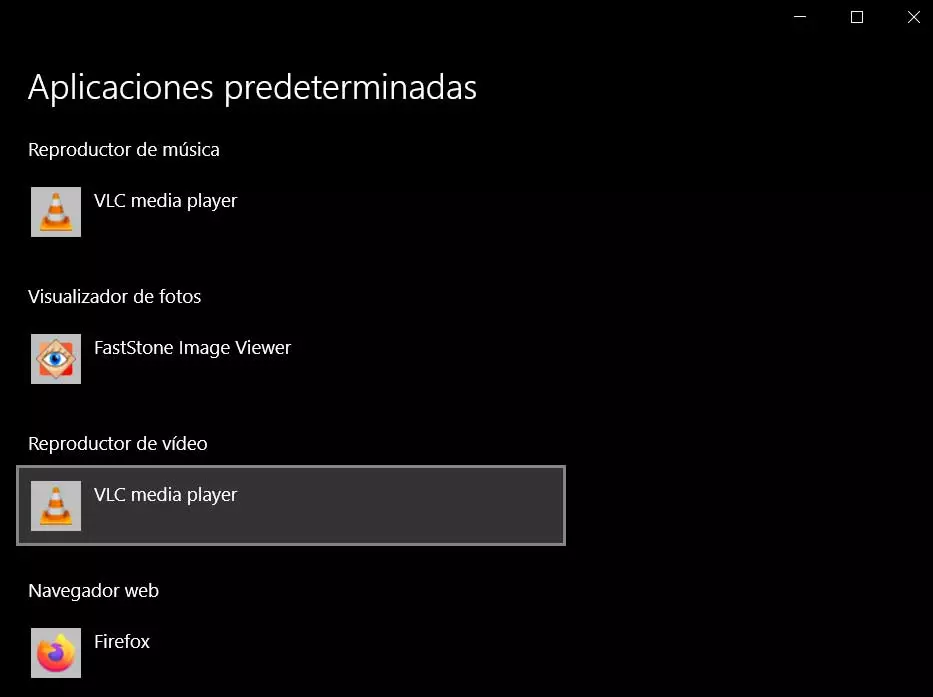
Next, a new window will appear in which we must select the Applications option. In the left panel precisely we are going to find an option called Default apps, so we click on it. Here we find different types of use and operation of Windows. In fact, if we look carefully we will see two sections that interest us for these tasks, we see two options.
one is called Video player, and the other Music player. Well, as you can imagine, we only have to click on them to select the program that we always want to use by default. This is where we opted for the VLC option, which will allow us to always open our videos automatically in this program.