Windows, like any other operating system, comes configured out of the box to try to save energy and reduce the famous carbon footprint on the planet. To do this, it uses certain resources, such as turning off the computer screen when there is no activity, and even suspending or turning it off when we are not sitting in front of it. And, although the intention may be good, many times this can be a nuisance. Luckily, it is very easy to deal with it.
There are many programs that take care of generate bogus activity on PC simulating, for example, that we press a key or that we are moving the mouse. In this way we can fool all these inactivity sensors (also very useful if we telework) so that it seems that we are sitting in front of the computer. This way we will avoid, for example, that the screen turns off after not using it for a while, or that our computer goes into suspension, or turns off, losing all the information that we had open.
Today, we are going to talk about a very concrete and simple tool that allows us to do all of what we have talked about. And it is none other than the “Awake” tool, included within the well-known “PowerToys” from Microsoft.
How is Awake
Microsoft PowerToys are a set of advanced tools that allow us to perform certain tasks in the operating system that are not present by default. These tools were first born in the Windows 95 era, although it wasn’t until a few years ago, with Windows 10, that Microsoft resurrected them, turned them into OpenSource tools, and made them known again.
Within the many tools that appear to us within these PowerToys, we are going to talk about Awake. This tool came to the program with version 0.41.1 of the program, and is based on the operation of another very similar tool, also open source, called Caffeine.
In order to use this tool, the first thing we will do is download it from the Microsoft website and install it on our computer. Once installed, we run it and we can see all the tools that are included in these PowerToys. The one that interests us is the one with the name “Awake”.
As we can see, its configuration is very simple. The first thing we will see will be a switch that will allow us to activate or deactivate the “toy” depending on whether we are going to need it or not. We can also click on the “Mode” section to choose the operating mode we want.
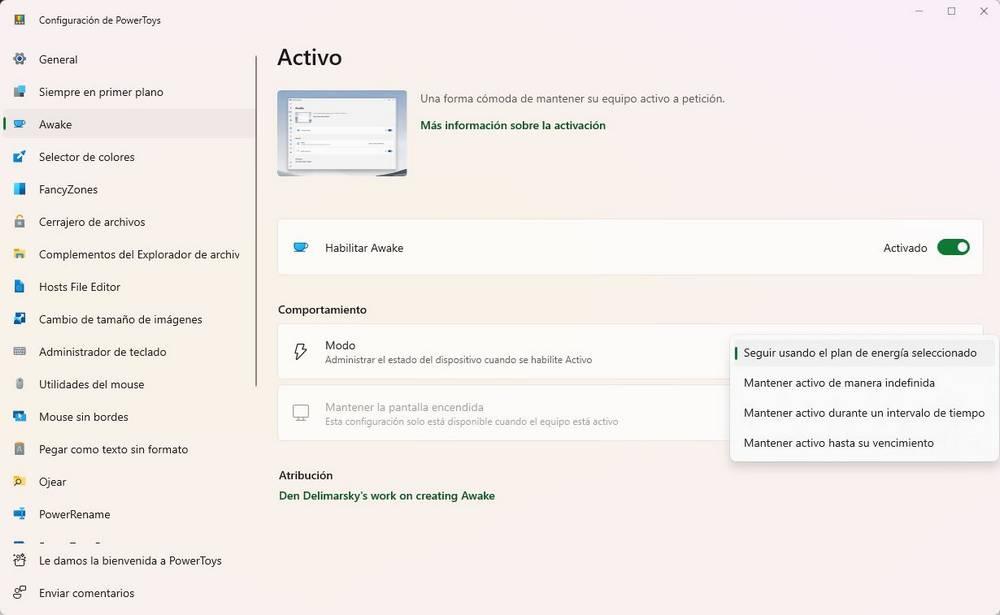
From here, for example, we can activate the tool so that it is always active, so that it only works for a period of time using a timer that we can configure, or so that it only works until the date that we indicate arrives. We will also find a switch at the bottom that will allow us to choose whether or not we want the screen to also be active.
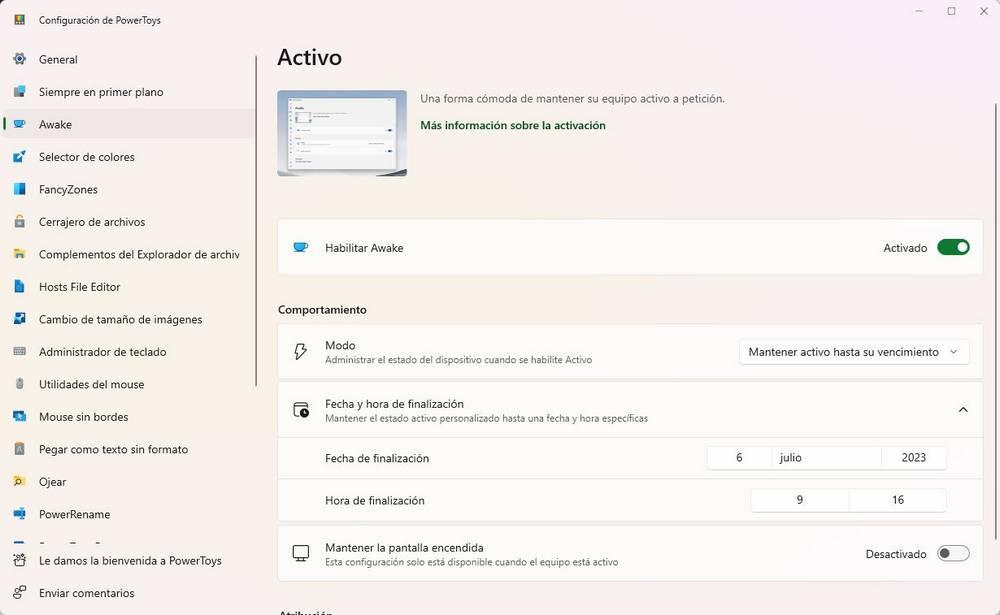
Once configured, we can forget about the program. This will take care of generating that false activity without us having to do anything else. So the PC never goes to sleep, turns off, and doesn’t even turn off the screen.