Google Chrome’s memory saving mode is a new experimental function that Google is testing with which it promises to free up as much RAM as possible when working with the computer. To do this, the browser is in charge of controlling all the tabs that are inactive and, when it detects that we are not using any of them, it will delete it directly from memory to free up as many resources as possible. In this way, Google Chrome will be able to navigate quickly and smoothly without problems, guaranteeing the best possible performance. And when the user reopens the suspended tab, it will reload automatically without you having to do anything.
In addition to saving RAM memory, this new feature also allows save battery on laptopssince it reduces their workload and will help to maximize its duration.
This function is disabled by default in the browser. But, following a few simple steps, it is very easy to activate it to start enjoying its advantages. Let’s see how it works.
First of all, download Google Chrome Canary
At the moment, the new Google Chrome power saving feature is limited exclusively to users of the Canary version of Google Chrome. This is because, although it will eventually reach all users, for the time being it still needs to undergo a series of tests in order to guarantee that it works correctly.
In this way, if we want to be able to start using this new feature of Google Chrome, the first thing we have to do is download and install Google Chrome Canary on the PC. We can download this version of the browser from the following link, and install it together with the current version we have of the browser, since we can have both versions installed at the same time.
We remember that the Canary branch of Chrome is a development and experimental version that can cause problems and have errors, so we must take this into account.
*As soon as Google deems this feature stable enough, it will automatically roll it out to all users. Therefore, we only have to wait a few weeks to be able to enjoy it in all versions.
Activate the memory saver function
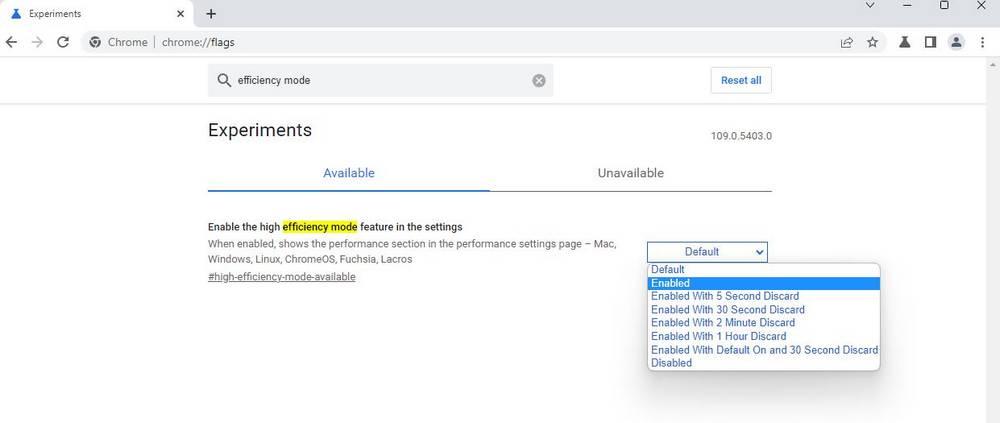
Once Google Chrome Canary is installed, we can easily activate this memory saving function by typing the following in the address bar:
chrome://flags/#high-efficiency-mode-available
Once the flag, or experimental function, is activated, the next step will be to restart the browser so that the changes are applied. And, when Chrome restarts, we can already start using this new feature. But first we will have to activate it. We enter the browser settings and we will see a new performance section. We select it and we will activate the function here.
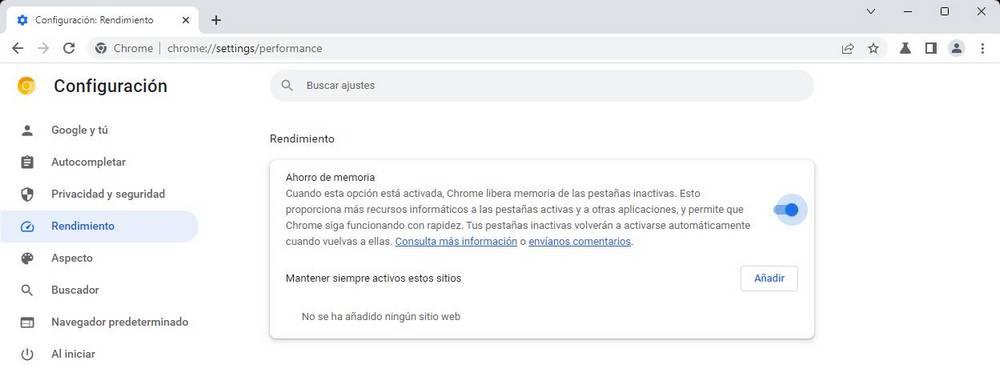
We can also add the websites that we do not want to be automatically suspended, so that they are always loaded in memory.
When a site is released, we will be able to see a new symbol in the address bar. By clicking on it, we can see a message that will indicate that Google has accelerated, freeing the resources of the web and that, when re-entering it, the page has been reloaded.

In this way, when we are browsing the Internet, with many tabs open, and these are no longer needed, we can let Chrome discard them and free their memory to automatically recover them when we are going to use them again.