One of the biggest concerns that all smartphone users usually have, not just exclusively those of an iPhone, is the battery life of their equipment. Well, with the 5 tricks that we are going to give you in this post, you will be able to make your iPhone battery last much longer than usual.
iPhone General Settings
Among the tricks that we want to tell you about in this post so that you can save battery on your iPhone and thus have greater autonomy, they have to do with certain settings that your device has and that you will have to modify, since many of them do not really help much. useful for most people. Now, you don’t have to take them all literally either, the ideal is that each one configures it according to their needs.
- Disable background updates. This is one of the processes that uses the most battery within the iPhone and, without a doubt, one of the ones that will have the most impact on the final autonomy of your device. Our advice is to deactivate this function in general or, on the contrary, activate it only for those apps that need it due to the use you make of them. To do this, follow these steps
- Open the Settings app on your iPhone.
- Click on General.
- Click on “Background Refresh”.
- Control the apps that locate you. Another of the iPhone services that consumes a lot of battery is location, so it is vital that you make good use of it. Our recommendation is that from time to time you review which applications have access to your location and deactivate those that really do not need it. To do this, follow the steps below.
- Open the Settings app.
- Click on Privacy and Security.
- Click on Location.
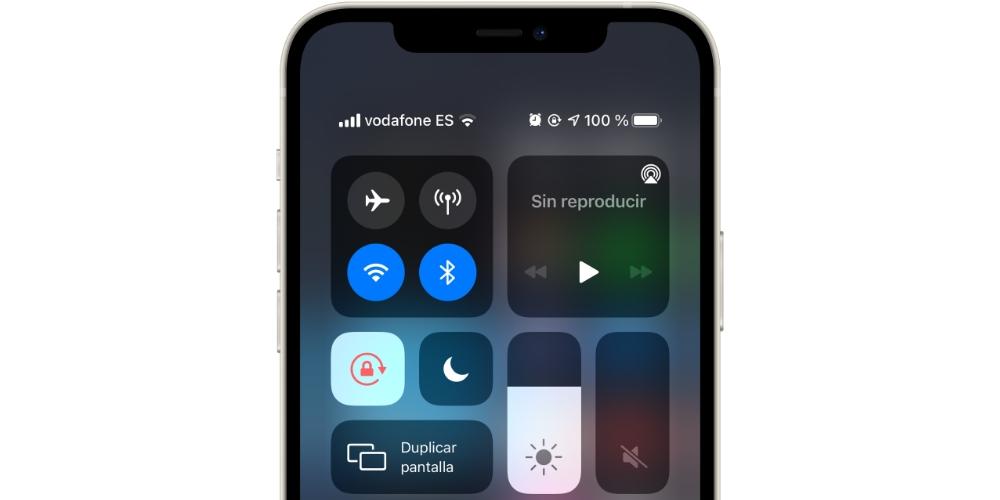
- Adjust screen brightness. The third tip or trick related to your iPhone settings is to control the brightness of the screen. Many users choose to have it automatic, something that comes in handy if you can’t or won’t be aware of it, however, the most optimal thing is that you control it manually from the control center, since that way you can adjust it much better . To disable automatic brightness you just have to follow the following steps.
- Open the Settings app.
- Click on Accessibility.
- Select “Display and text size”.
- Turn auto brightness off or on.
Modify the aesthetics of your iPhone to save battery
Once you know what are the most important settings that you have to take into account to save battery on your iPhone, we want to finish this post by telling you two tricks that you have to keep in mind if you have an iPhone with an OLED screen. This type of screen represents black pixels as off pixels, providing a purer black color and, above all, making those pixels use up battery power.
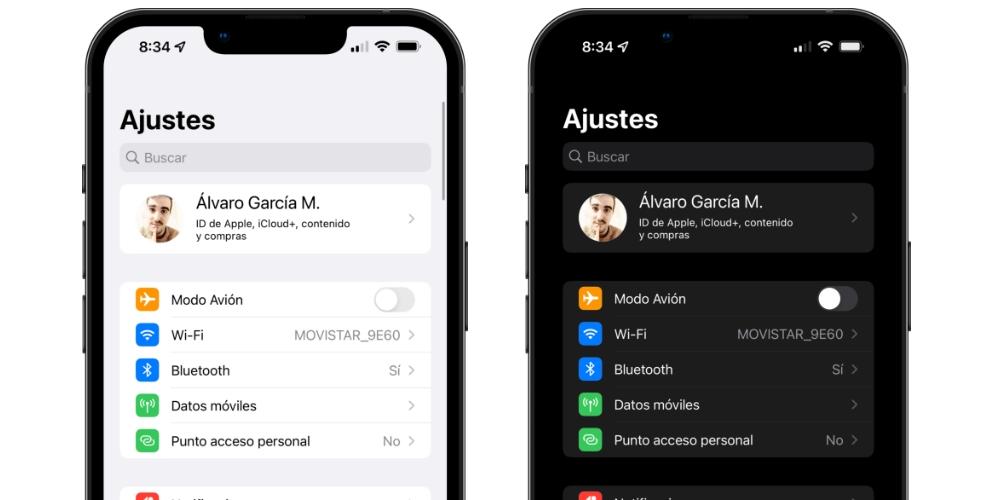
Therefore, all those iPhones with an OLED screen, if turn on dark modethey will be able to save battery throughout the day, but it is that if in addition also put a black screen background or that it is also very dark, they will save more battery if possible. It is something that must be taken into account but that, obviously, affects the aesthetics that your device will have.