Of course, in the event that we work constantly on the move, or on a personal level we need a computer to use in several locations, a laptop is perfect. As we say, in the first instance we take into account all the advantages that these teams offer us in their day to day. But as it happens with most of the elements related to the technologythese teams also have their drawbacks.
We could say that if one of the great benefits that these portable devices bring us is their autonomy, it can also become one of the great inconveniences. It is precisely for all this that, depending on the needs of each moment, we should set up PC operation in one way or another. A clear example of all this can be found in the case in which we are going to talk to you now. We refer to those situations in which we need to make the most of the potential and performance of the computer.
For example, in the event that we need it to play our games with the games most recent. It may also be the case that we need the laptop to run at its maximum if we are going to use certain very demanding applications such as video editing or image processing. 3d objects, for instance. Therefore, we are going to show you a Windows function with which you can improve overall computer performance.
Improve laptop performance with this change in Windows
Of course, we must take into consideration that as we increase the performance and operation of our equipment, battery consumption will also be affected. What this means is that as we use a greater amount of RAM, processor either GPU, the battery consumption will also increase. With everything and with it, the Windows function that we are going to talk about next will be very useful to us whether we have power or not.
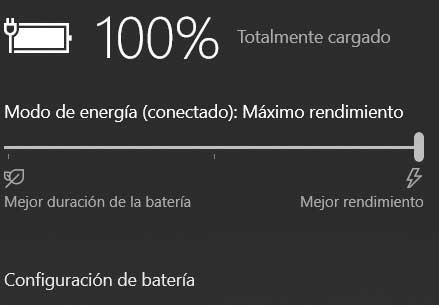
That is, we will have the possibility of improve performance of our equipment certain occasions, whether we have it connected to the electrical network, or if it is powered by the battery. Also, this is something we can do in a few seconds. To give you an idea of everything we are talking about, this is a change that we make through the icon that is located to the right of the taskbar.
Generally, here Windows shows an icon in the shape of a battery that we can click on directly. In this section we are going to find a sliding bar that allows us to choose between three positions. The two that are located at both ends indicate that we can use the best performance, or the best battery duration.
We also find ourselves in an intermediate position between the two. Obviously, in the case at hand we are going to opt for using the first option, so we place the selector on the right side of the bar.
In this way we managed to squeeze the most out of the laptop resourceswhich will come in handy on some occasions, but sacrificing a good part of its autonomy.