If you have just bought a used laptop, you have just rescued one or simply because of the time that has passed you have forgotten which model of laptop you have purchased and you need to know it, then do not worry, since we are going to give you a series of extremely easy ways to find out what model of laptop you have in seconds.
The shortage of hardware in combination with the pandemic situation, which forced many people to telecommute, caused a massive purchase of laptops to be able to work from home. With the return to normality, many of these have come onto the second-hand market. The same happens in the opposite direction, where many users out of necessity have opted for used equipment.
How to know the model of my laptop in Windows?
There are several ways to know what model of laptop you are using, the easiest of which is to turn it over and look at the labels on the bottom of it. Of course, these may have fallen off over time, been removed or replaced by others in bad faith to deceive the buyer. Specifically, if you are Windows users, there are two very quick ways to find out and that will cost you a few seconds.
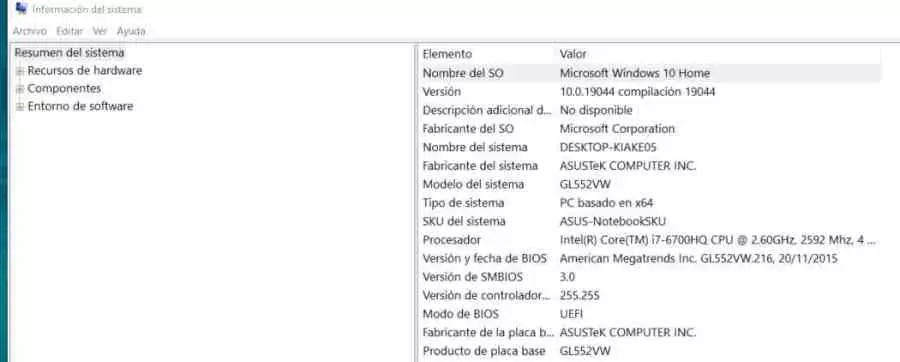
The first method to do it is very simple, in the search box on the taskbar type msinfo32 and press enter, this will open the system information application where you can see the system model and brand. In our example it is an ASUS GL552VW.
Another way to know the portable model is through the DirectX diagnostic tool, the procedure is the same as the previous one but writing DX Diag in the search field. As you can see in the image above you will see how you will have the information immediately by simply opening the application.

In case you like to use the terminal you can do it from the command prompt. To access it you just have to type in the search bar cmd and press enter. Already inside it write the following:
wmic csproduct get name, identifyingnumber
As you can see in the image above, you will not only be able to know the model of your laptop, but also the serial number. We hope that this has been useful for you to certify that your laptop is the model you bought and they have not changed it.
Why do you need to know?
Unfortunately, many of these kits when sold at second-hand stores don’t come with the full specs, much less the model. That is why there is a danger that they give us a pig in a poke and if you have suspicions of this you have to know that there are very easy ways to know which model of laptop you have bought.
Nor can we ignore that with the passage of time it is easy to forget which model we have bought after a few years and sometimes this is necessary when we format the hard drive or SSD and need to download all the drivers that came with it. our system. Do not forget that the Windows repository will download generic drivers that will not allow you to use in many cases all the capabilities that the hardware brings, only the minimum to function and perform basic tasks.
There are many brands that develop their own hardware that they only incorporate into their systems and not having access to them means that our PC is incomplete after a system reinstallation.