And we must bear in mind that only a few years ago migrating to an operating system with these characteristics was limited to a few professionals. But this limitation has largely been overcome in recent times. What is achieved with this is that all those who are not convinced with Windows from Microsoft, they can migrate to an open source alternative without problems. In addition, many of its operations at the interface level are very similar, which is why many users dare to try a Linux distribution.
To all this we can add the wide app compatibility that we have at this moment. Thus, in most cases we can continue using our favorite programs, even if we have migrated to linux. In fact, in these lines we are going to focus on an element integrated into the open source system that will be very useful to you. We could say that it is the equivalent of the Taskbar that we find in the Microsoft system. Specifically, we are referring to the Favorites Bar with which we can interact to improve the Linux experience.
Also know as Dock, this is an element that allows us to directly access the most used applications. Obviously it has some interesting customizable parameters that we can adjust and improve.
Get the most out of the Linux Favorites Bar
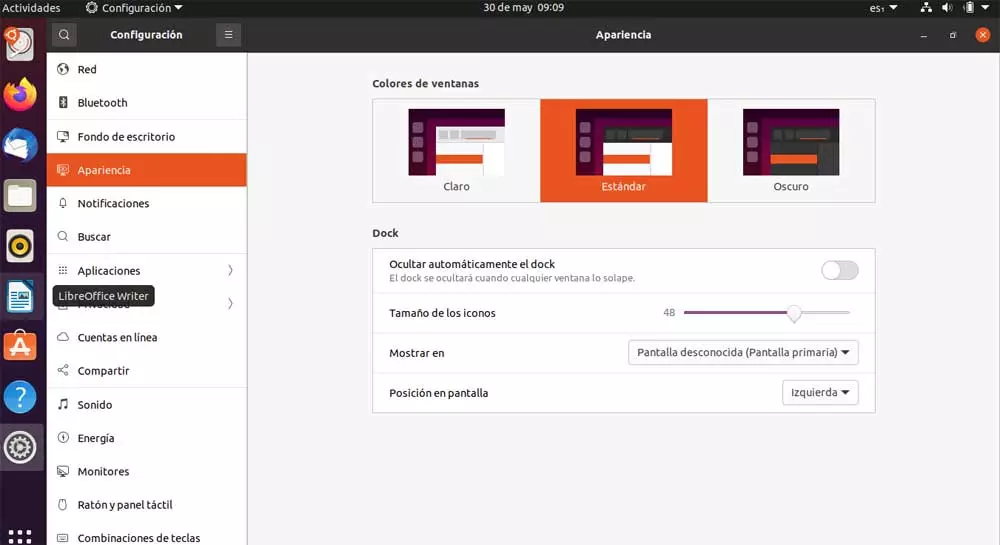
In many current distributions, we find this favorites bar on the left side of the desktop by default. However, this is something that we can easily modify by simply opening the operating system configuration window. Among the many sections that we find here, the one that interests us in this case is the one called Appearance.
Among other things, here we will have the possibility of placing this Favorites Bar that we discussed in the desired desktop location. But that’s not all, but at the same time we will have the possibility to specify the size of the icons or shortcuts that we place here. Depending on the number of accesses to programs that we use from this section, we can increase or decrease its size. Another very interesting option that we can configure from this section is the possibility of hide this bar automatically.
In this way it will only appear when we pass the cursor over the previously established location on the desktop. When we are performing other tasks, it will hide itself, leaving us more work space. We can also establish the screen in which we want to see this element if we work with multiple monitors.
Likewise, it is interesting to know that we have the possibility of add or remove programs from this Favorites Bar very easily. All we have to do is click with the right mouse button on the icon with which we want to interact to add or remove it from this bar.